
Requests & RFQs
A request tells providers what you need, where, and when, in one structured form. Send it to companies you pick, open it to the market, or both, and quotes come back in a format you can compare.
FOR BUYERS & PROVIDERS
Anyone can build a request. Publishing one requires company verification, so until your company is approved you can only save drafts. Providers send requests too, for work they subcontract.
Key takeaways
- One form captures services, port, ETA, ETD, vessel, and attachments, so providers do not have to chase you for context.
- Anything missing from the catalogue can be typed in and carried on the request as entered.
- Targeted requests go to companies you choose; open RFQs reach every verified provider covering that market.
- One checkbox does both, putting your shortlist in competition with the open market.
- Every request has a quote deadline, which you can extend at any point before accepting.
Where to find it
Place New Request sits at the top of the sidebar on every page. Sent requests live under Requests, and providers also get Inbox and Open RFQs there.
Creating a request
Three steps:
- Services, what you need: pick from the catalogue, or type a service that is not listed.
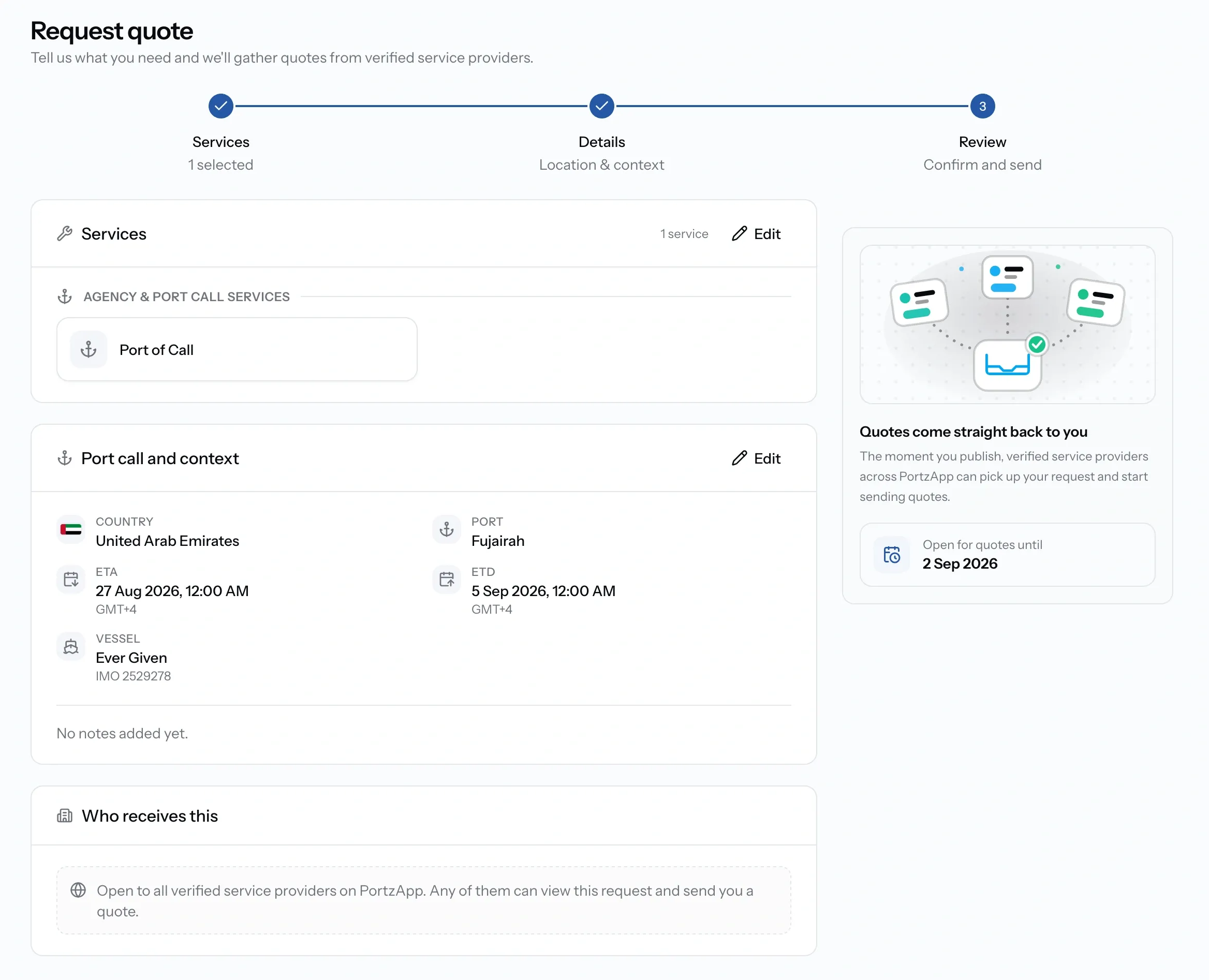
- Details, location and context: country and port, ETA and ETD in port local time, operational remarks, and optionally a vessel, either one from your fleet or entered by name and IMO number. Attach files such as port call info sheets here.
- Review, confirm and send: check everything, set the deadline, and publish.
Country and port are the minimum context providers need. ETA and ETD are optional but help them quote accurately. Skip the vessel entirely for shore-side work like supplies or paperwork.
If something is not in the catalogue
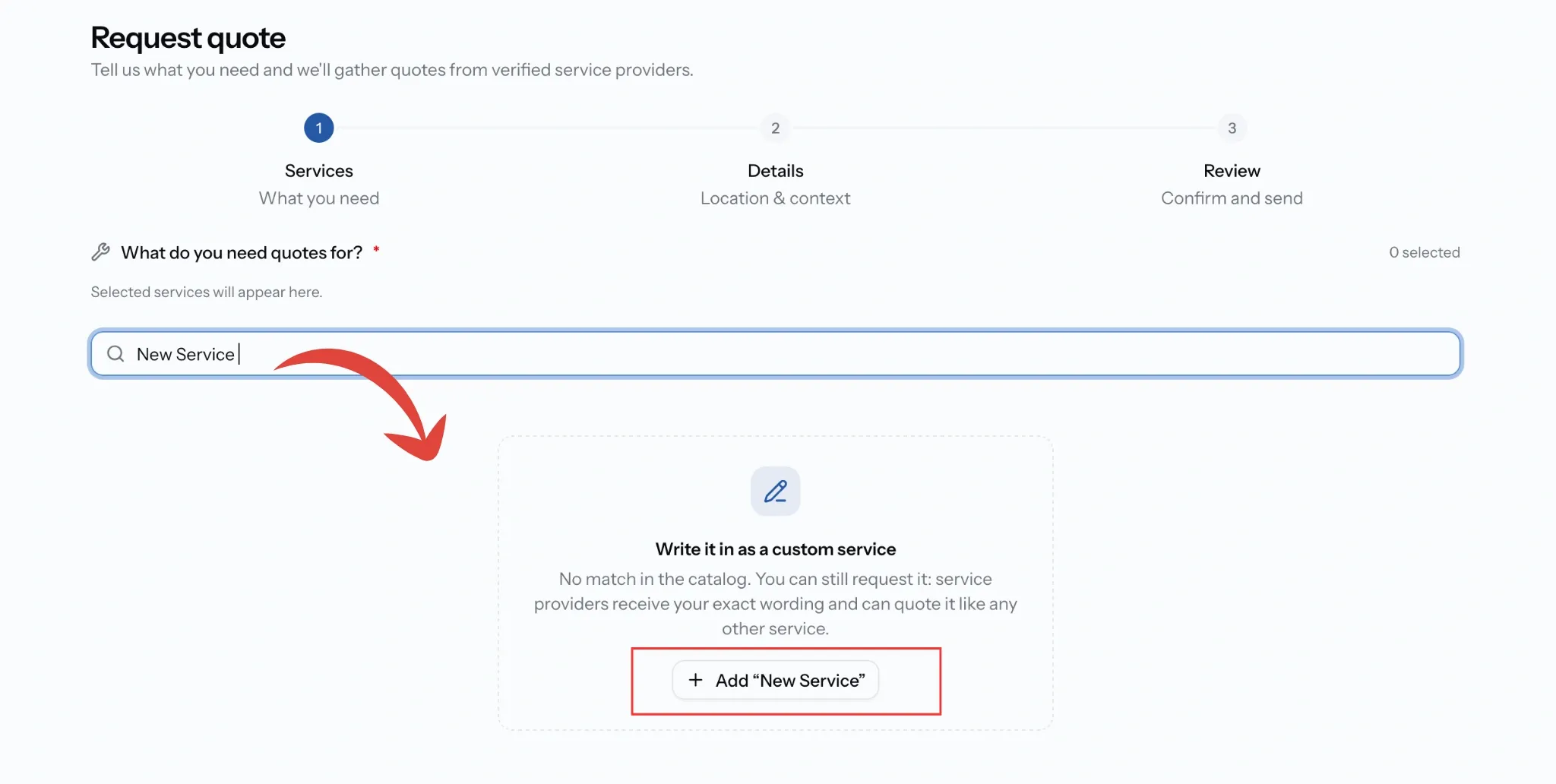
Services: Type what you need. If nothing matches, PortzApp offers to write it in as a custom service, and providers receive your exact wording and can quote it like any other line.
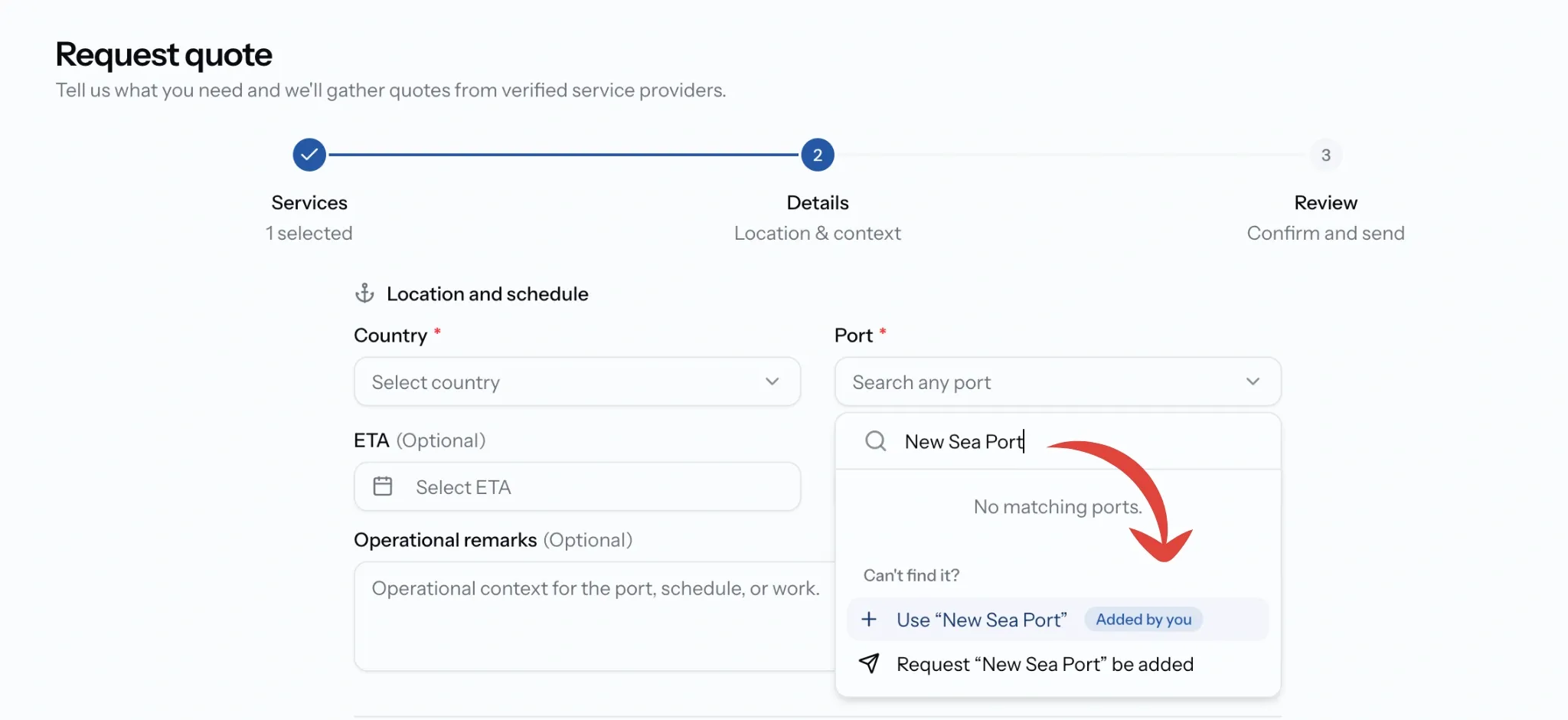
Ports: Type the port name. If nothing matches, two options appear under Can't find it?
- Use "…" carries the port on this request as you typed it, badged Added by you.
- Request "…" be added sends it to the PortzApp team for the catalogue.
Take both. The first means your request goes out today, the second gets the port in for everyone next time. One consequence to know: a request using a typed-in port does not create a port call, since that needs a catalogue port.
Choosing who receives it
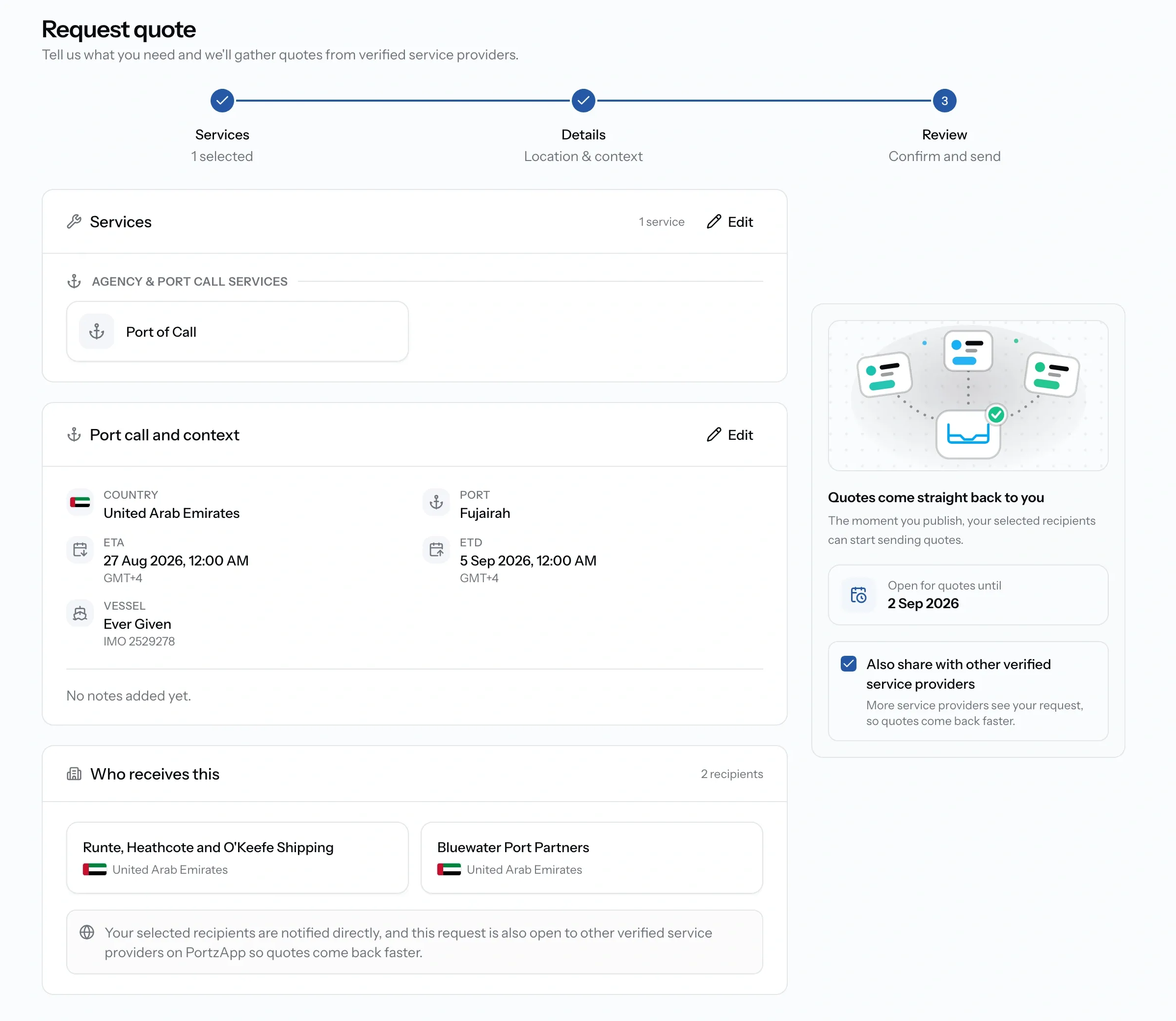
- Targeted: only the companies you selected, including any picked from the directory.
- Open: every verified provider whose coverage includes that market.
- Both: tick "Also share with other verified service providers" on a targeted request.
Tracking a sent request
Open a sent request to review each quote side by side and accept one. From there you can also extend the deadline, or cancel the request, which closes it for everyone you sent it to and lets them know. Drafts can be edited or deleted outright.
Once you accept a quote, the request links through to the job it created.
Request statuses
Common issues
I cannot publish my request
Publishing requires company verification. Save the draft, finish verification, then publish.
The port I need is not listed
Type the port name and carry on. The request keeps it as a custom port. Or use Request a port as well if you want it added to the catalogue for everyone.
My request expired before I chose a quote
Use Extend Request to set a new deadline. If a provider's quote also expired, ask them to resubmit.
No port call was created
A port call needs both a vessel and a port chosen from the catalogue.