
Job Messaging & Collaboration
Messages sit with the work. Each job carries its own conversation, so a question about a port call is next to the port call it is about, and every file shared in it is filed under the job.
FOR BUYERS & PROVIDERS
Every role except Viewer can read and send messages. On a job created from a quote, the conversation is shared with the other organization and everything in it is visible to them.
Key takeaways
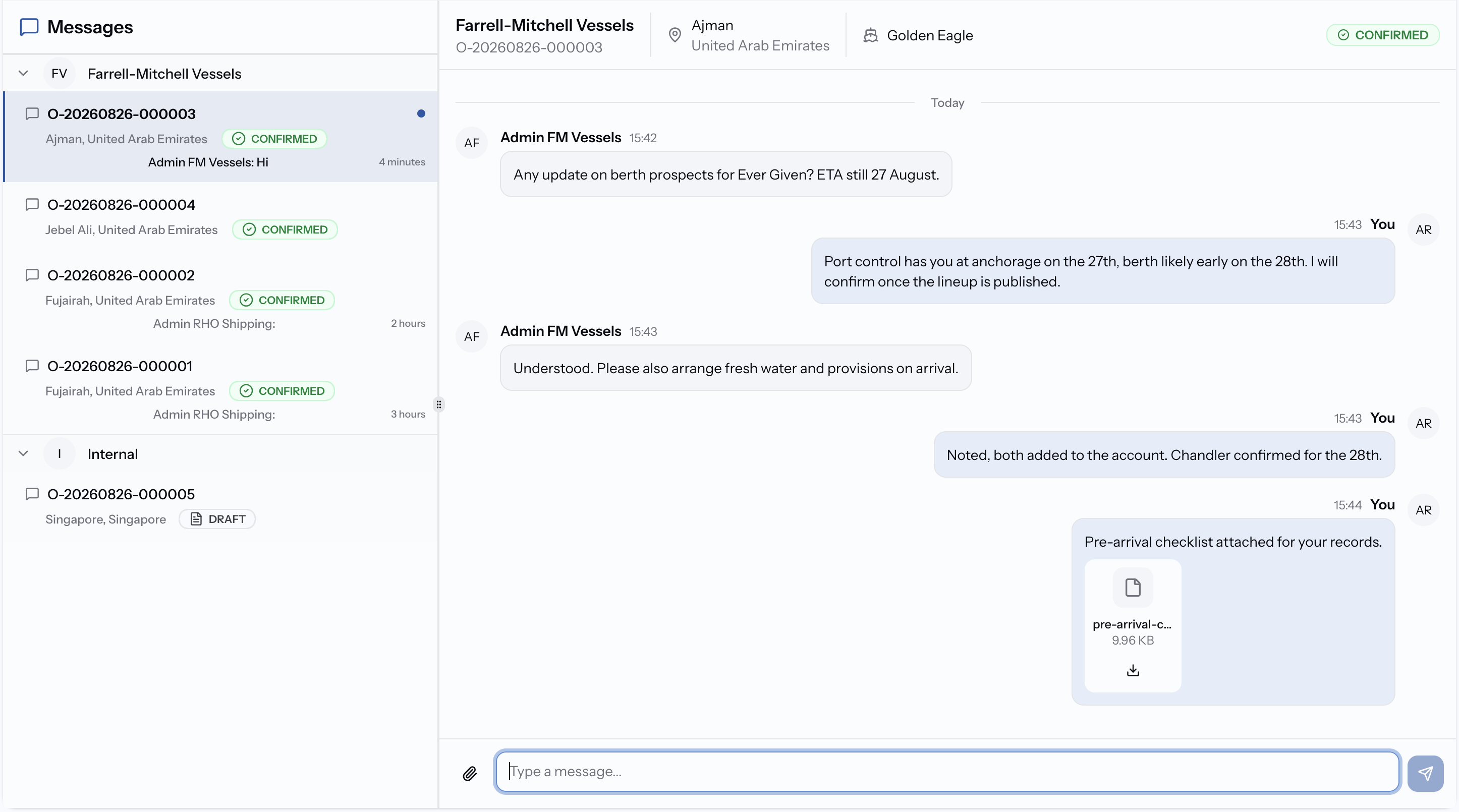
- Conversations are grouped by job and by organization, with the vessel, port, and job status shown alongside.
- Jobs from a quote get a conversation shared with the other organization. Manual jobs get one that stays within your team.
- Files and images shared in chat are filed under the job automatically.
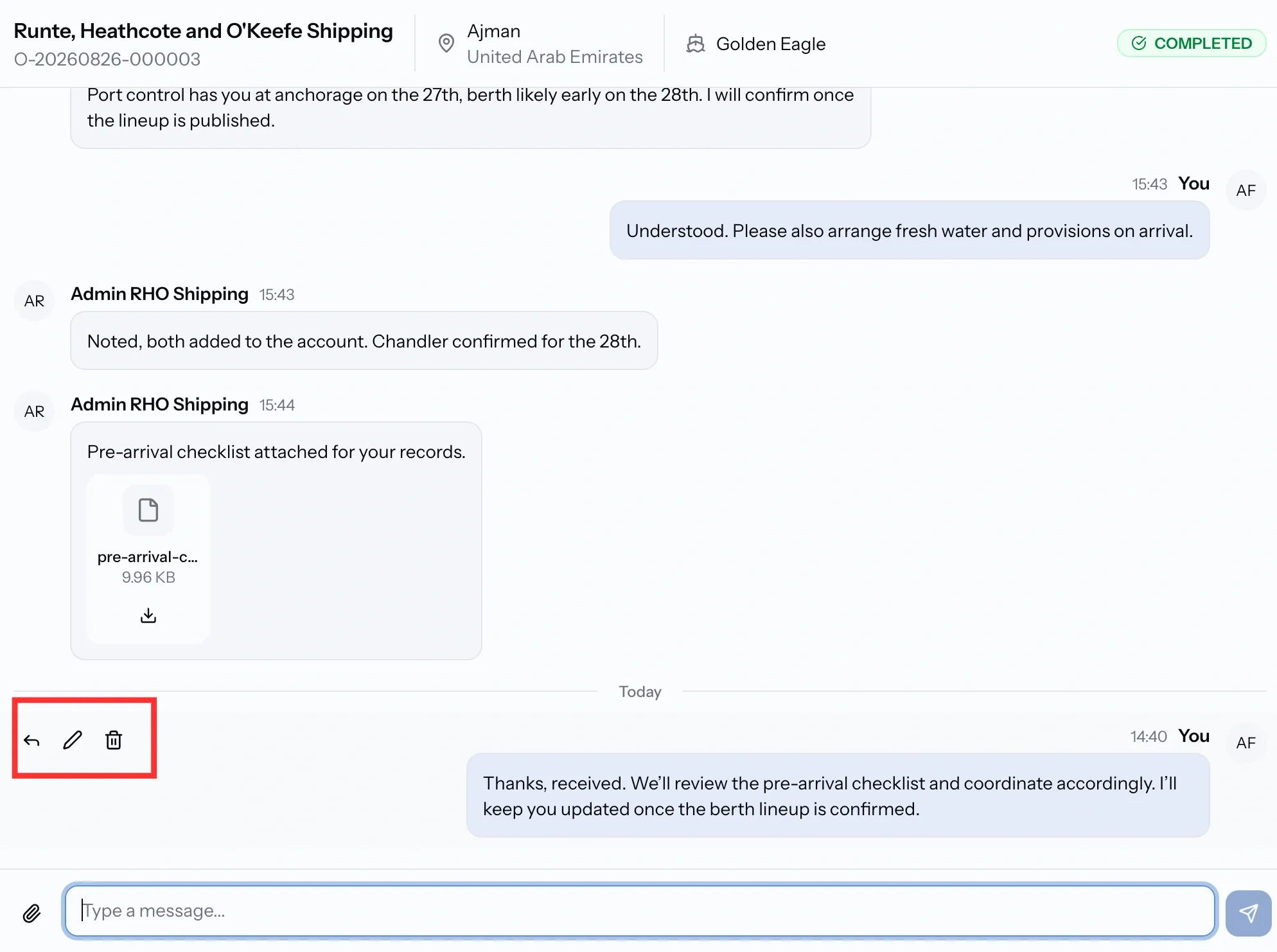
- Messages can be edited, deleted, and replied to directly.
Where messages live
Open the dock at the bottom of any page to see every conversation you are part of, with a count on the icon when something is unread. Or open a job and select Chat in its header to go straight to that thread.
The dock groups conversations by organization first, then by the jobs you have with them. Each job row carries its number, its port, its current status, and a preview of the last message, so you can tell what needs an answer before opening anything.
To get messages by email as well, turn on the chat category under Notification Preferences. Chat alerts deliberately stay out of the notification bell, so a quiet bell does not mean a quiet thread.
One conversation per job
Every job carries a conversation, and who is in it depends on how the job started:
- Jobs from an accepted quote get a shared conversation between both organizations. Everything in it is visible to the other side.
- Manual jobs have no counterparty on PortzApp, so their conversation is internal to your own team.
Each conversation header shows the job number, the counterparty, the vessel, the port, and the job's status, so you always know which visit you are discussing.
Files and images
Attach files and images straight into a conversation. Anything shared this way also appears in the job's Documents tab, filed under chat, with its size and details.
On Pro, chat PDFs can be appended into a document export, so a delivery note photographed at the quayside can end up inside the final account you send the client.
Replying, editing, and deleting
Hover any message for three actions. Reply quotes the message you are answering, which keeps a busy thread readable when several things are in play at once. Edit corrects your own wording. Delete removes the message.
Edits and deletions take effect immediately, but anyone who has already read the original will have seen it. If the correction matters, say so in the thread rather than relying on the edit alone.
Common issues
I cannot send messages
The Viewer role has no chat access. Every other role can send and reply.
I cannot find the conversation for a job
Open the job and its conversation is attached, or use Messages, where threads are grouped by job with the vessel and port shown alongside.
Chat files are not appearing in my export
Appending chat PDFs into an export is a Pro feature, and only PDFs can be appended. Images and other formats stay in the Documents tab.