
Job Activity Timeline
The Timeline is a job's audit trail. Every approval, change, and publication on its disbursement account is recorded with who did it, when, and what moved.
FOR BUYERS & PROVIDERS
Both organizations see the Timeline on a shared job. It records the job and its account, not the vessel's progress through the port, which is tracked on the port call.
The Timeline is visible to Admin, CEO, Manager, and Finance. Viewer and Operations do not see the tab.
Key takeaways
- Every approval, change, and publication is recorded automatically. Nothing has to be logged by hand.
- Entries name the person, the time, and the reason where one was given.
- An edited item shows its values before and after, field by field.
- Manual jobs have no Timeline, because there is no requester approving anything.
Where to find it
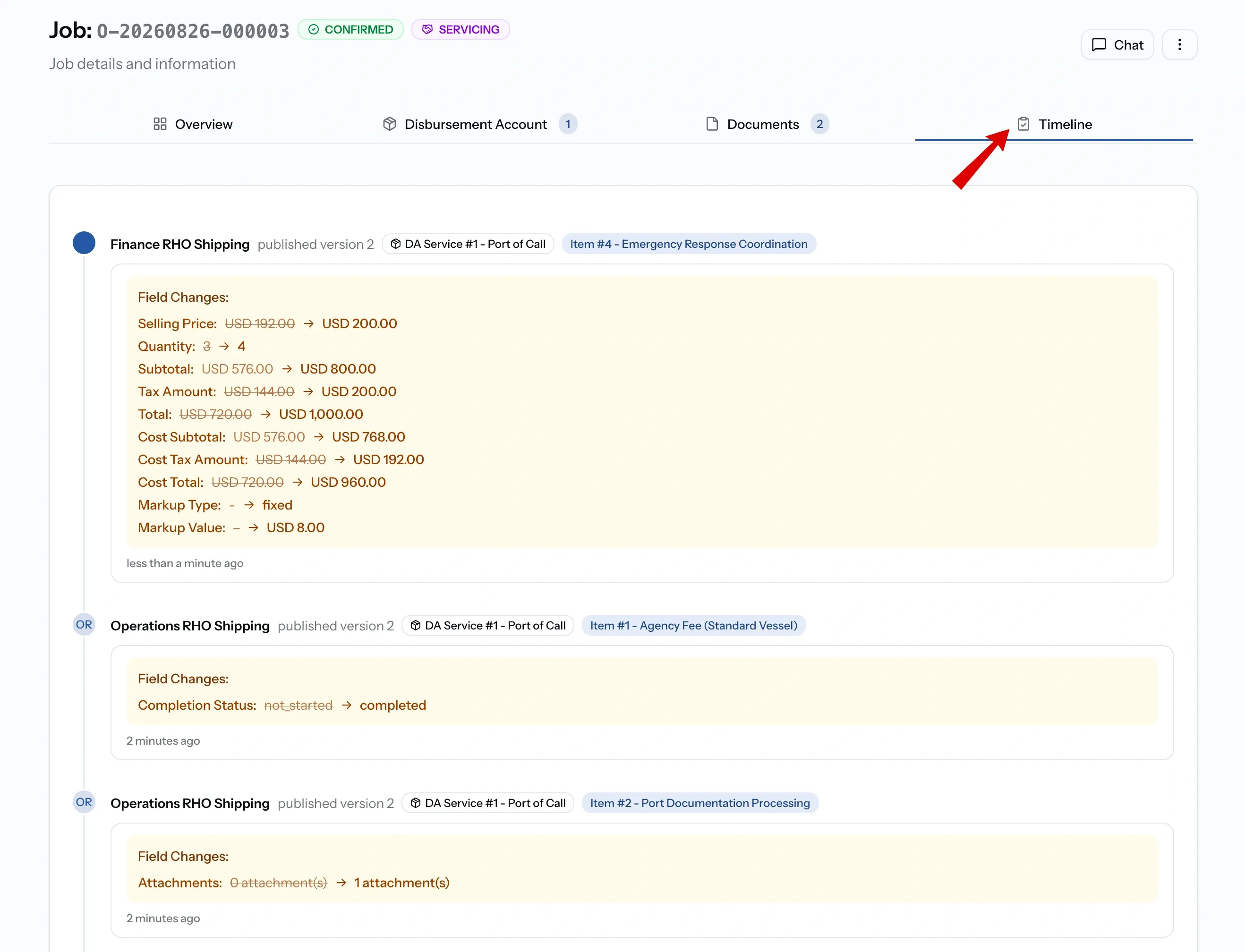
Open a job and select the Timeline tab. It is the fourth tab, and unlike the account and documents tabs it carries no count.
What it records
Every change to the job's disbursement account, written as it happens:
- Item versions, when a published item is edited and republished, with every changed field listed old value to new.
- Delivery status, when an item or service moves between not started, in progress, and completed.
- Attachments, when a file is added to or removed from an item.
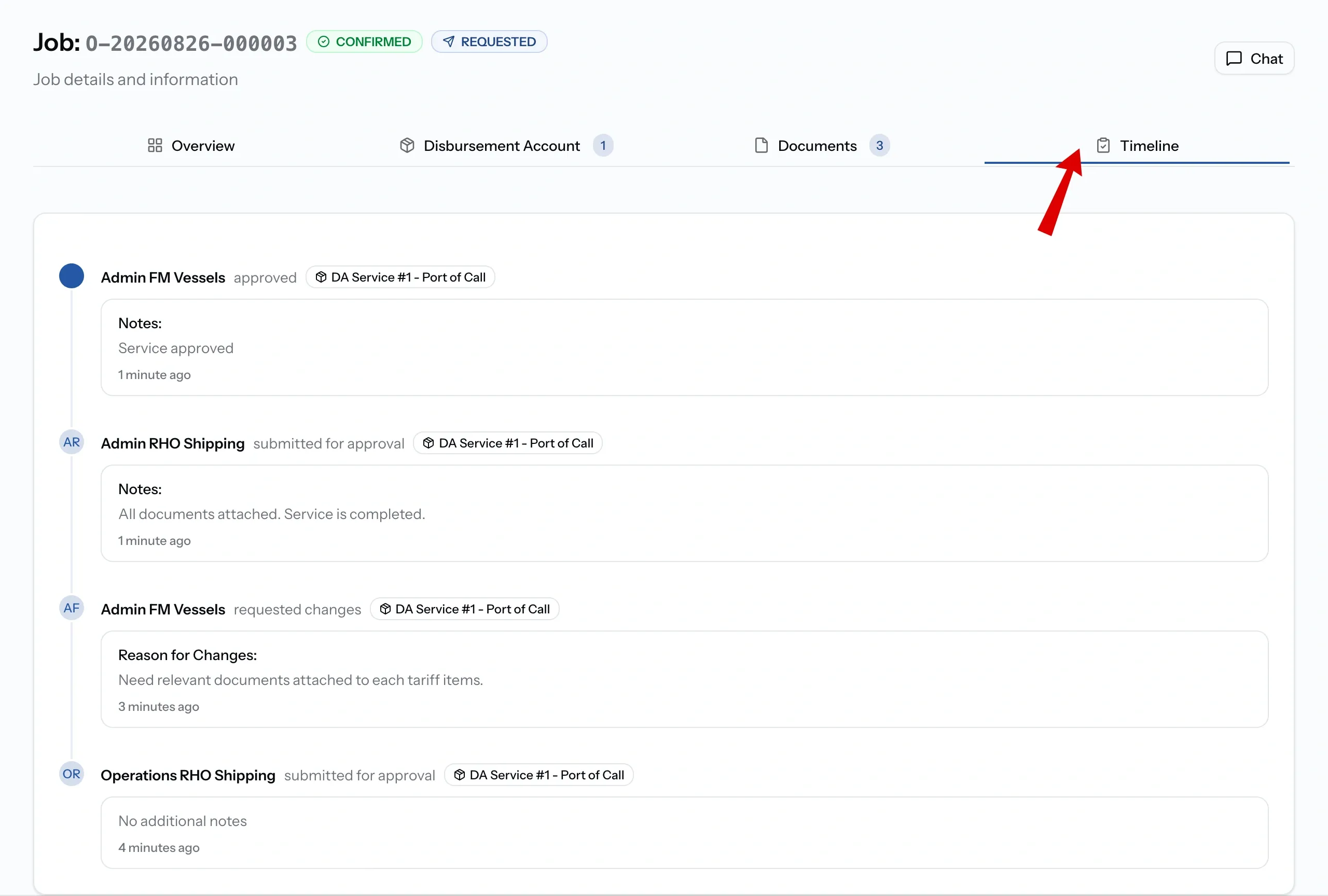
- Approvals, when a service is submitted, approved, sent back for changes, or rejected.
If you are providing the service
Your side of the record is what you submitted and what you changed. Submitting a service for approval writes an entry, as does editing a published item, which also captures the values before and after.
The requester's decisions land in the same feed, so a service you sent back and forth twice reads as one sequence rather than something you have to reconstruct from email.
If you are requesting the service
Your approvals, change requests, and rejections are recorded with the reason you gave. That reason is the useful part: a service sent back with "rates differ from the quote" tells everyone months later what the disagreement was, which a bare status never does.
You see the provider's submissions and edits in the same feed, including what changed on a republished item.
Reading an entry
Four things in every entry.
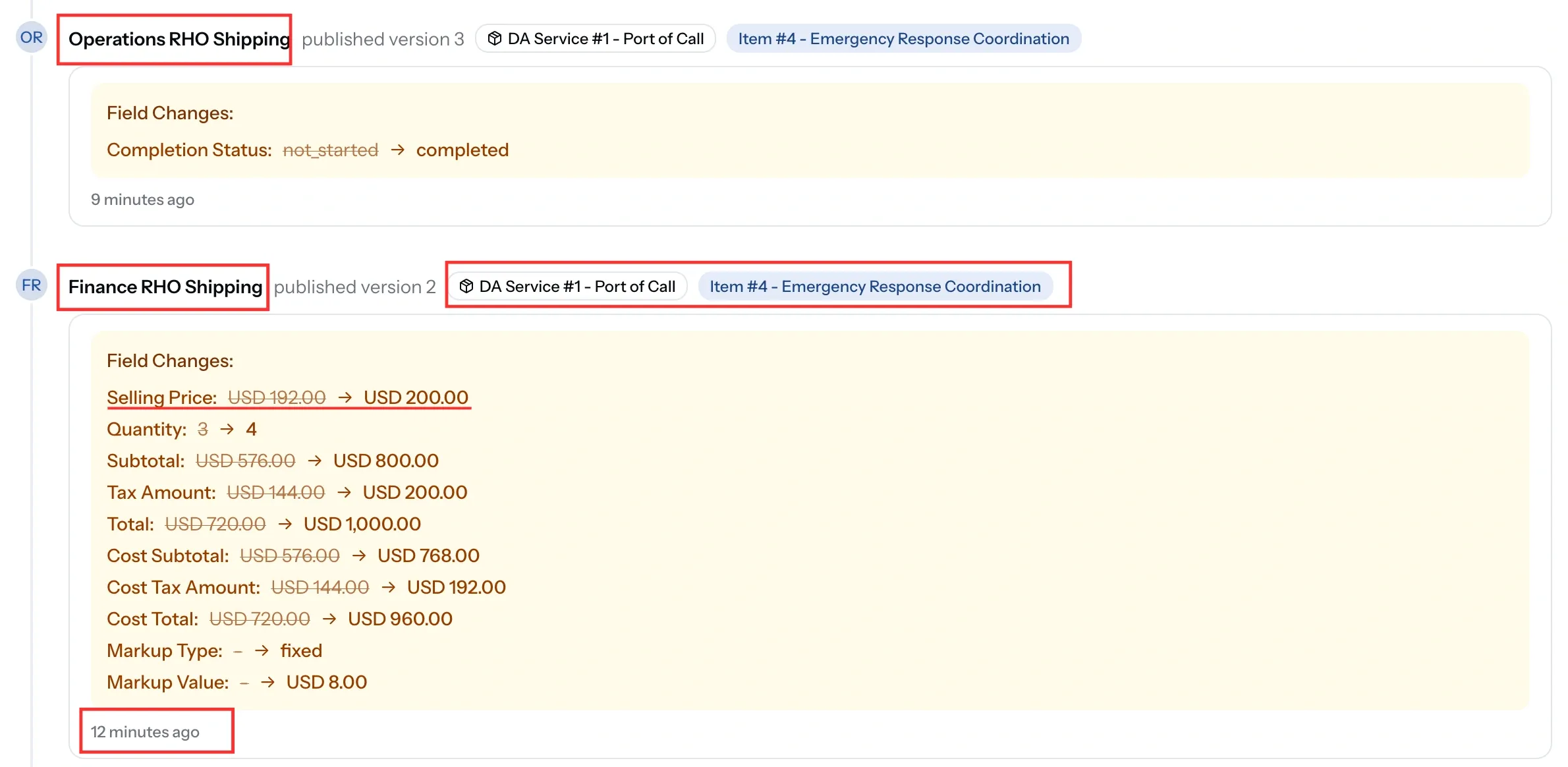
- Who acted, by name, with their initials in the marker beside it.
- What it applies to, as chips naming the service and the numbered item, so you can trace it straight back to the account.
- What changed, under Field Changes, with the old value struck through and the new one beside it.
- When, as time elapsed rather than a timestamp.
The action itself sits next to the name, and for a republished item it carries the version number, so published version 3 tells you this is the third time that item has gone out.
One edit can produce a long list. Changing a quantity from three to four moves the subtotal, the tax, and the totals with it, and adding a markup brings its own two lines, which is why a single price change reads as ten field changes rather than one.
Why it is worth having
Most of the time nobody looks at it. It earns its place months later, when neither side remembers who agreed to a charge, when a figure changed, or why a service was sent back.
Because it is written automatically as people work, there is nothing to maintain and nothing anyone can forget to record.
Not the same as port call activity
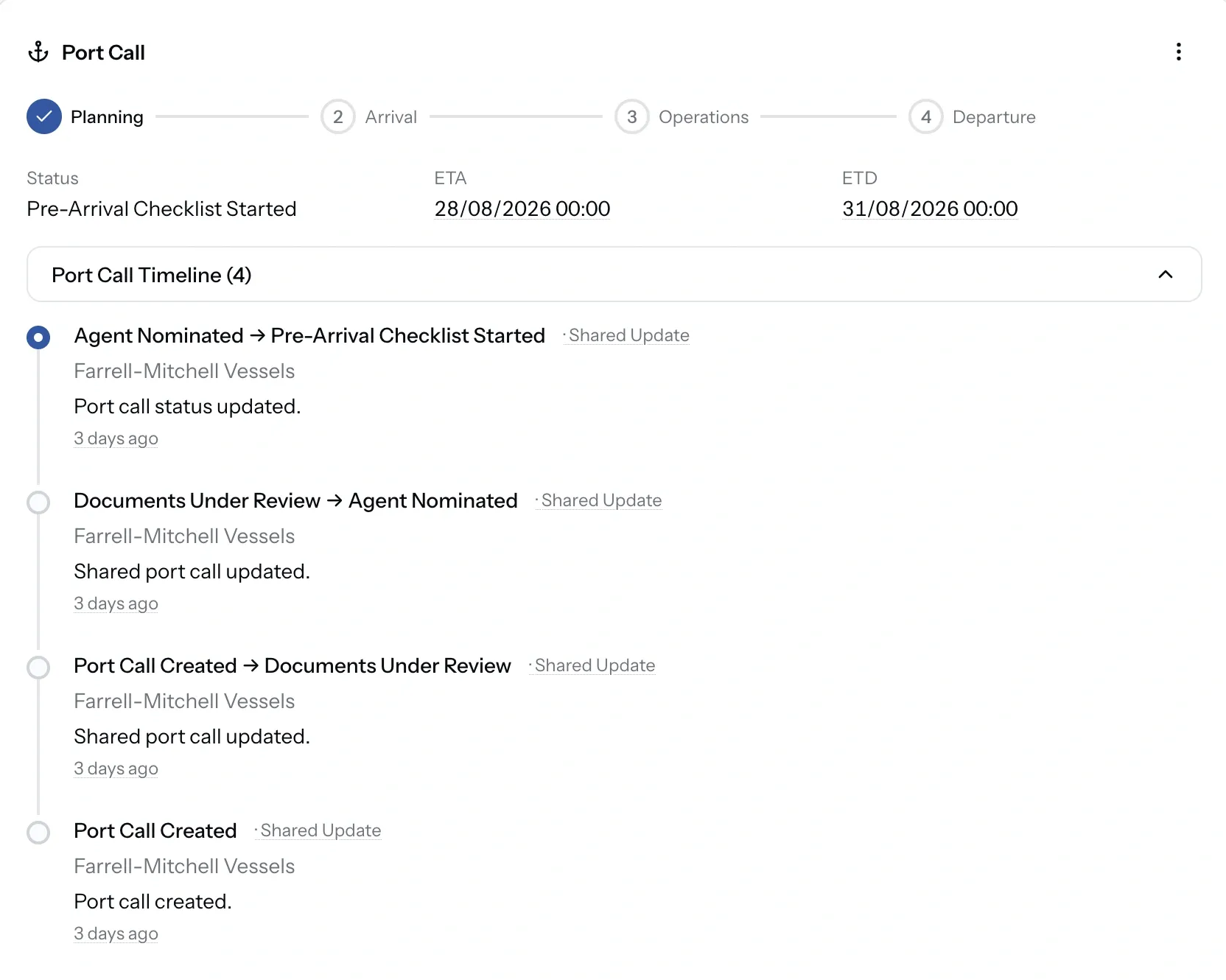
A port call has its own activity feed, covering status changes and updates from every request and job attached to the visit. That one tracks the vessel.
The Timeline tracks the account. If you are asking where the vessel has got to, you want the port call. If you are asking who approved the agency fee, you want this.
Common issues
There is no Timeline tab
Manual jobs have no requester approving the account, so there is no approval history to show.
The Timeline is empty
Nothing has been submitted for approval yet. Entries appear as services are submitted, approved, or changed.
The Timeline tab showing access restricted
Viewer and Operations cannot see the Timeline. Admin, CEO, Manager, and Finance can. On a manual job nobody sees it, since there is no approval history.
The Timeline is visible to Admin, CEO, Manager, and Finance. Viewer and Operations do not see the tab.
Status updates about the vessel live on the port call, not on the job.