
Job Documents & Exports
Every file attached to a job collects in one tab, and the account behind it becomes the documents you issue: a proforma before arrival, a final account after departure.
FOR SERVICE PROVIDERS
Providers create and issue documents. Requesters can open every file in the Documents tab and receive whatever you publish or email. Appending supporting PDFs into one export is part of Pro.
Key takeaways
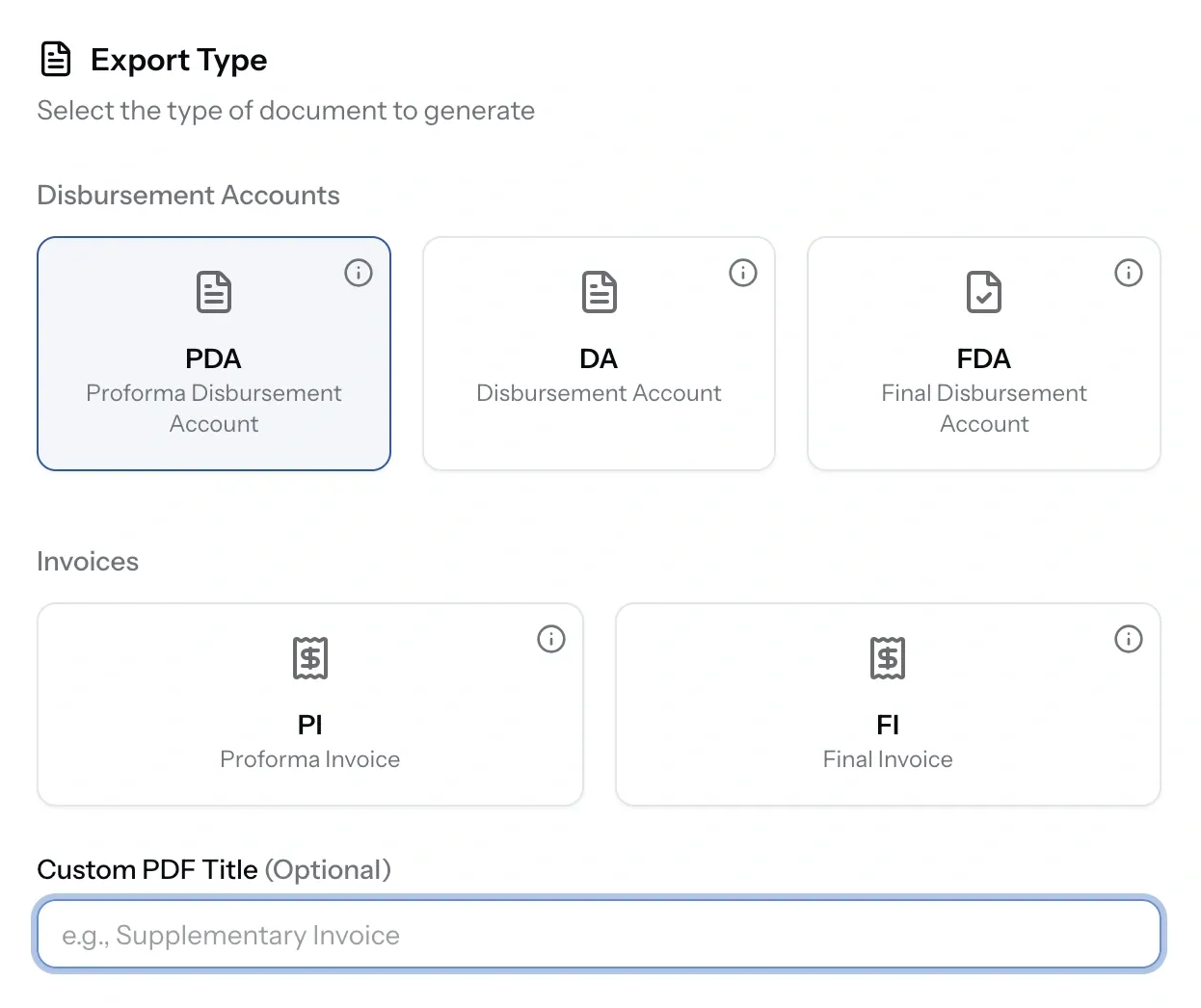
- Five standard document types cover the cycle, and a custom type covers anything they do not.
- Only billable, published items can go on an export, and you choose which ones.
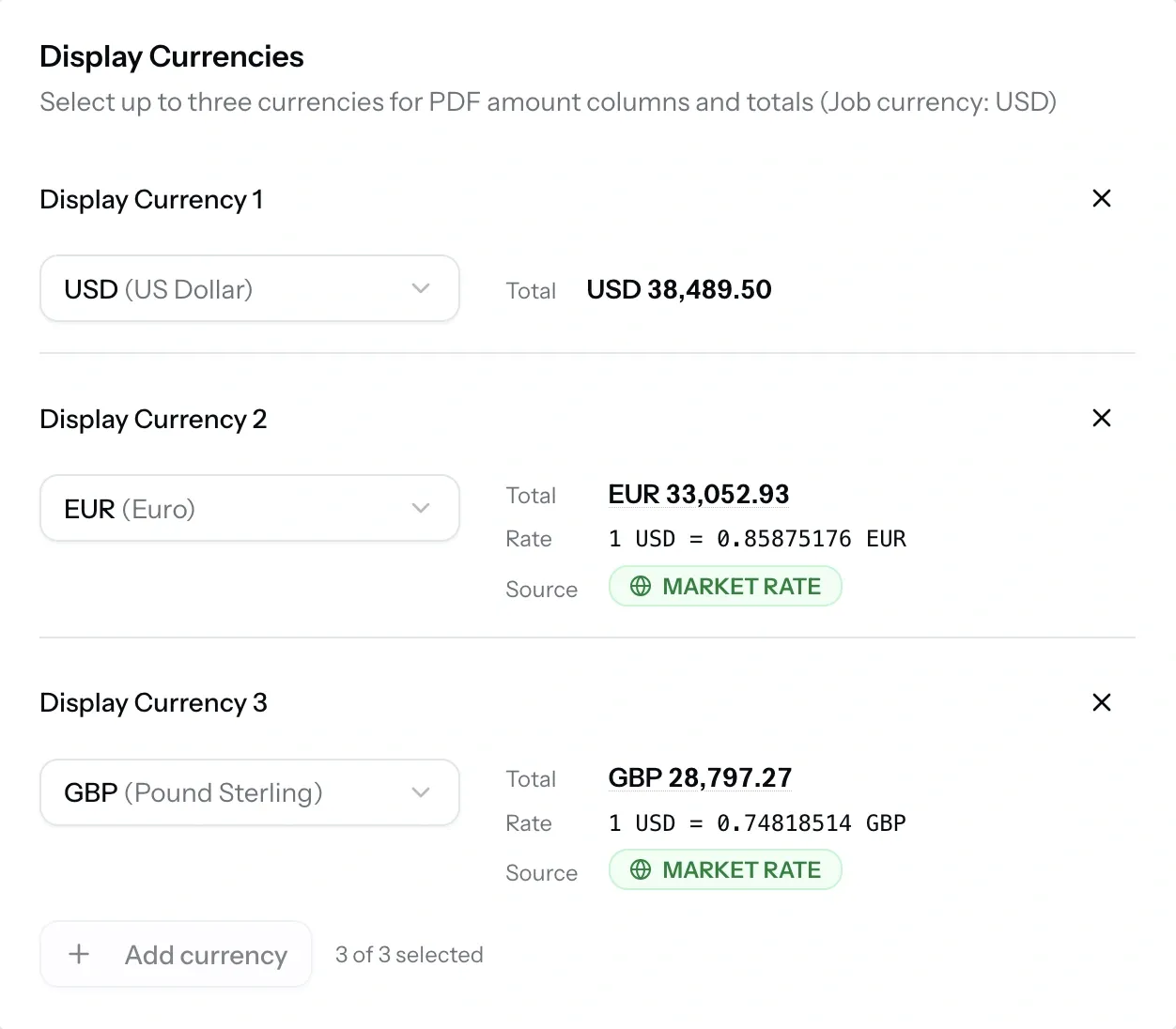
- One document can show totals in up to three currencies, each with its rate stated.
Every file in one place
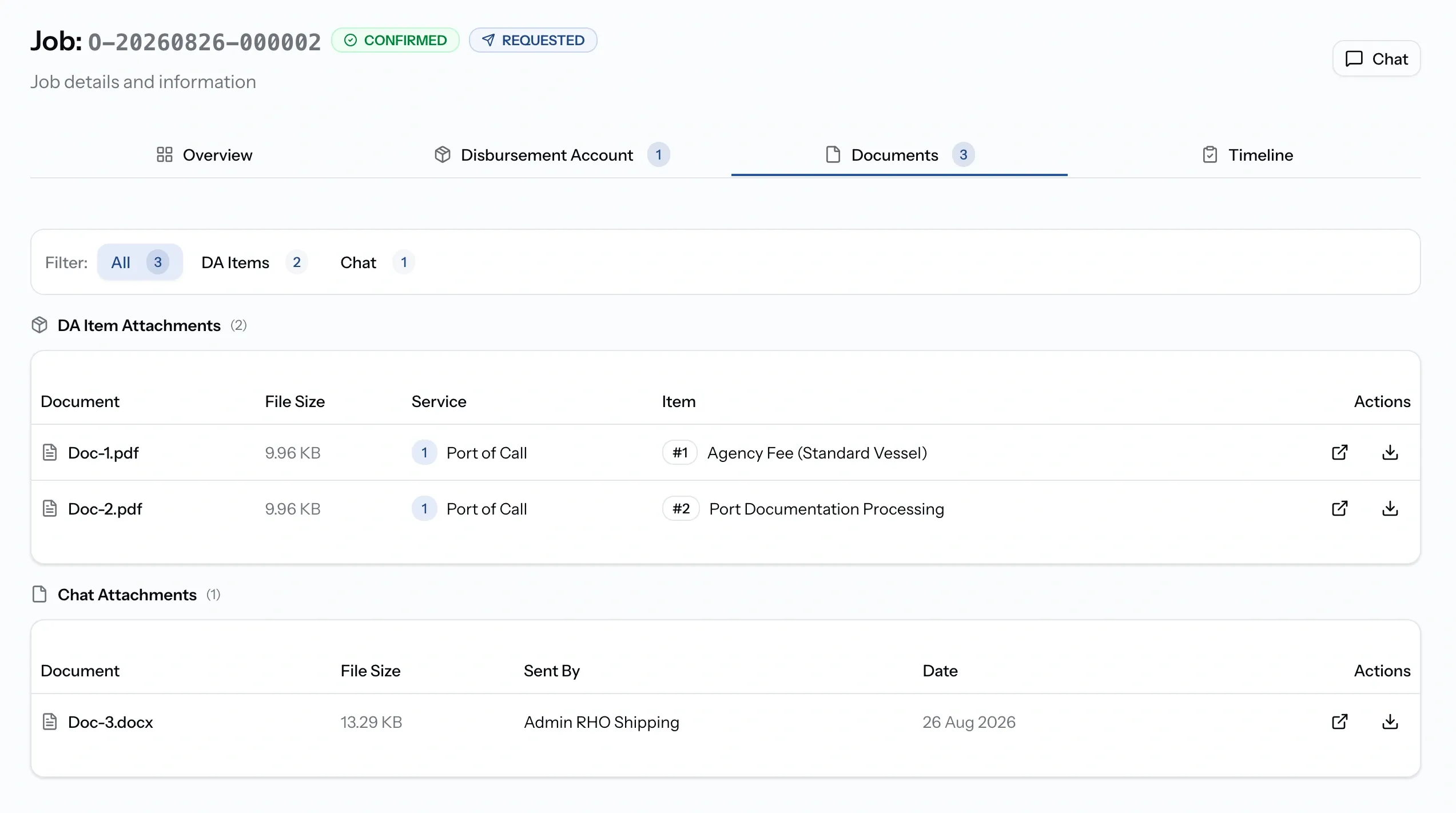
Anything either side attaches to a job collects in its Documents tab, filtered by All, DA Items, or Chat.
Account attachments stay tied to the service and the numbered item they support, so an invoice is traceable to the charge it justifies rather than sitting in a general pile. Chat attachments are listed with who sent them and when. Both can be opened or downloaded.
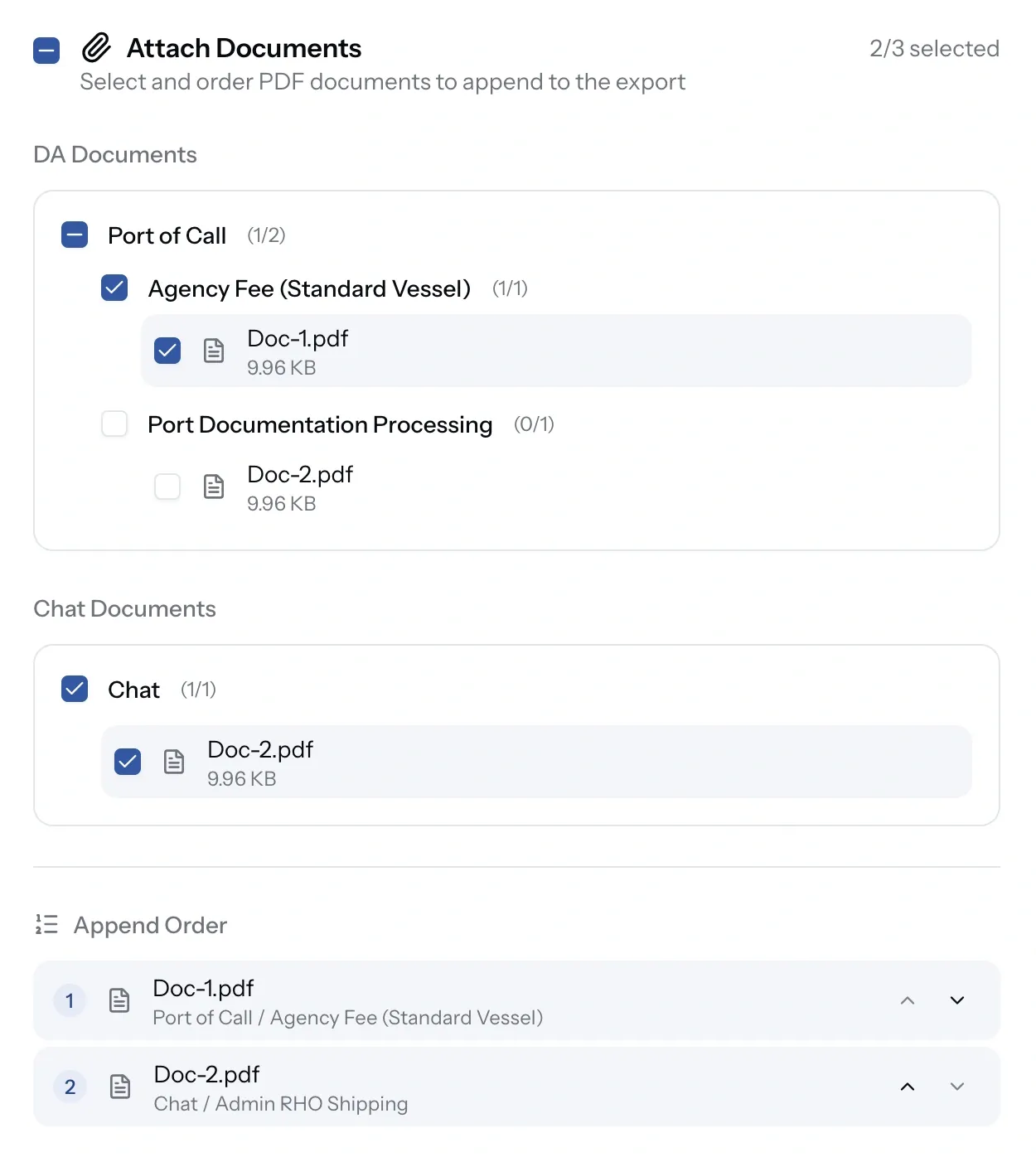
Any file type is welcome, though only PDFs attached to account items can be appended into an export.
Which document to issue
Building an export
Pick the type, then shape the document:
- Items: include everything, or select line by line. Only billable items appear here.
- Branding: your organization's letterhead, a custom logo, or none, with an optional PortzApp logo.
- Issuing company and recipient: name, registration code, address, phone, email, and tax ID for each.
- Vessel and port call details: the job reference, and the job, arrival, and departure dates.
- Payment terms and any notes you want printed on the document.
Naming your own document
Not every client asks for a PDA or an FDA. Choose Custom and you set the title yourself, whether that is a statement of account, a cost estimate, or whatever wording your counterparty expects. Everything else behaves identically: the same item selection, the same currencies, the same branding, and the same account behind it. Only the name on the document changes.
Only PDA can be generated from a quote. The other four and a custom need a job behind them.
Showing more than one currency
Add as many display currencies as the document needs. Each appears with its exchange rate and the source of that rate, so the client can see how the conversion was reached rather than taking the number on trust.
Appending supporting documents
On Pro, an export can absorb the paperwork behind it. Attach the PDFs sitting on your account items, such as vendor invoices and receipts, along with files shared in the job chat, and set the order they appear in. The client receives one document containing the account and every voucher supporting it.
Sending and sharing
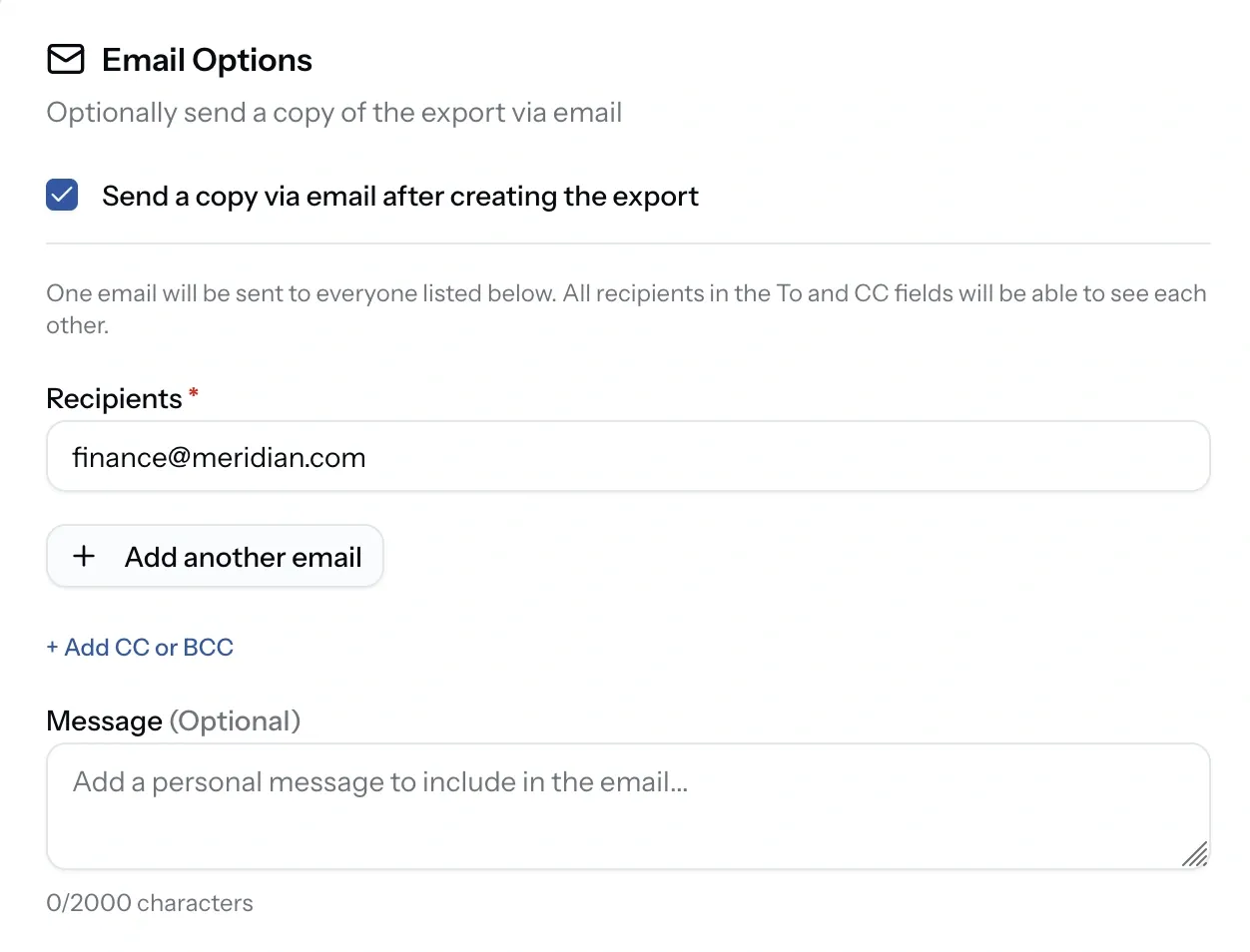
Email the export straight from PortzApp, with recipients, CC, BCC, and a message, and its delivery status is tracked in the exports list.
Export statuses
Common issues
No billable items available
he account has no published billable items yet. Publish them, then create the export.
A display currency shows no rate
No exchange rate exists for that pair. Set a custom rate under Settings, Currency, or drop the currency from the document.
The append option is locked
Combining account and chat PDFs into one export is part of Pro.
The export failed
Generation did not complete. Create it again, and contact support if it fails a second time.