
Team Management
Colleagues do not sign themselves up. An admin creates each account with a username and password, hands the credentials over, and manages the team from there.
FOR ORGANIZATION ADMINS
Available only on Pro Plan
Everything here needs the Admin role. Other roles cannot manage the team at all. Find it under Settings, then Organization.
Key takeaways
- Accounts are created with credentials rather than invited by email.
- The password is shown once, so it has to be copied before the dialog closes.
- Several people can be created in one go.
- Seats are set by your plan, and creating an account uses one.
Your team, and your seats
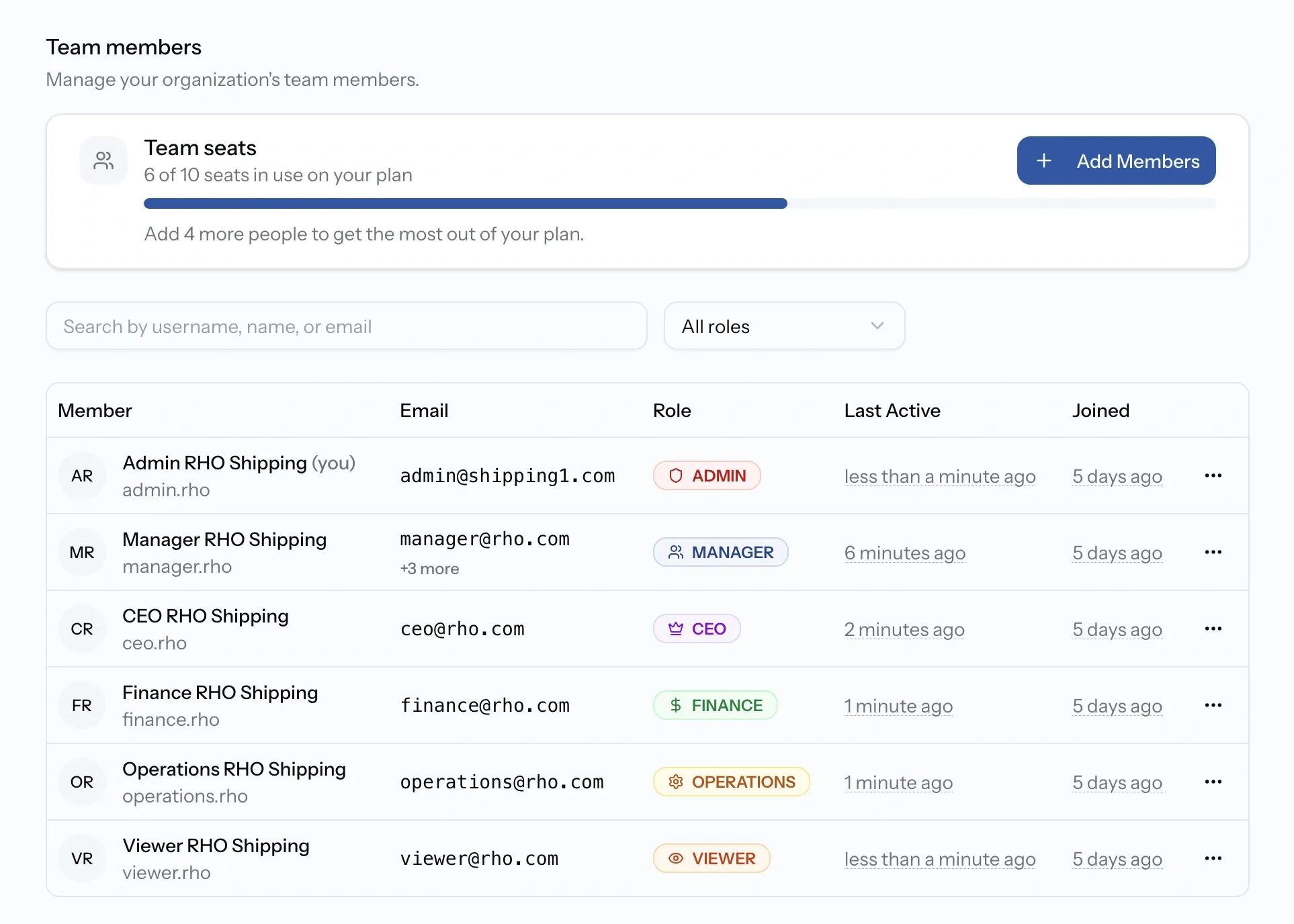
Settings, then Organization, holds your company details and your team below them. The list is searchable by username, name, or email, and paged once the team grows.
Above it sits your seat count: how many are in use out of how many your plan includes. Every account you create takes one, and when they are all gone the card says so and points at adding more.
Accounts are created, not invited
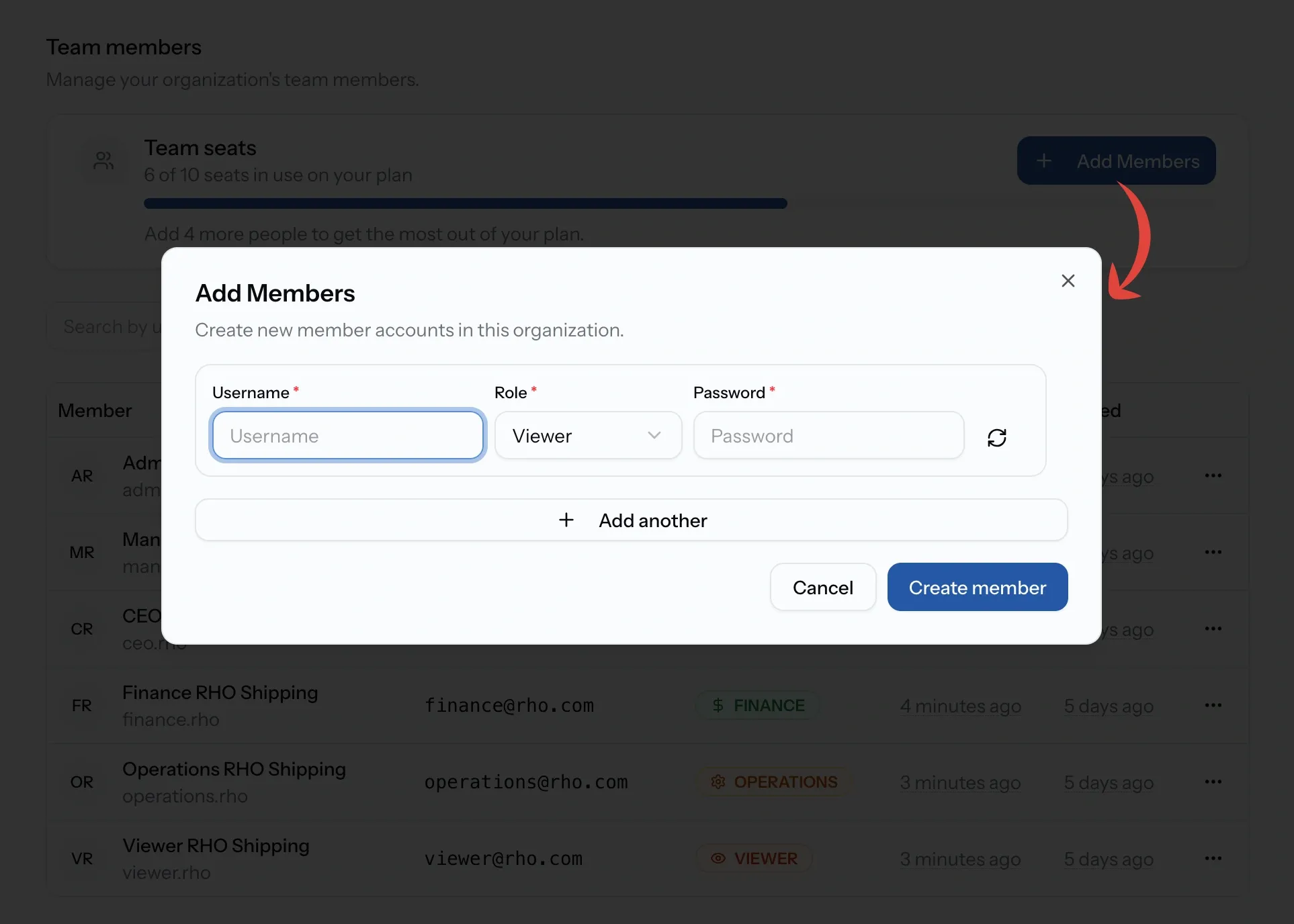
There is no invitation to accept. Add Members creates the accounts outright, each with a username, a role, and a password that can be generated for you.
Several can be set up in one pass, which suits onboarding a shift or a department in a single sitting rather than one person at a time.
No email address is involved. A new account has a username and nothing else, which is why linking an email afterwards matters: it is what lets that person receive notifications and recover their own password.
Credentials are shown once
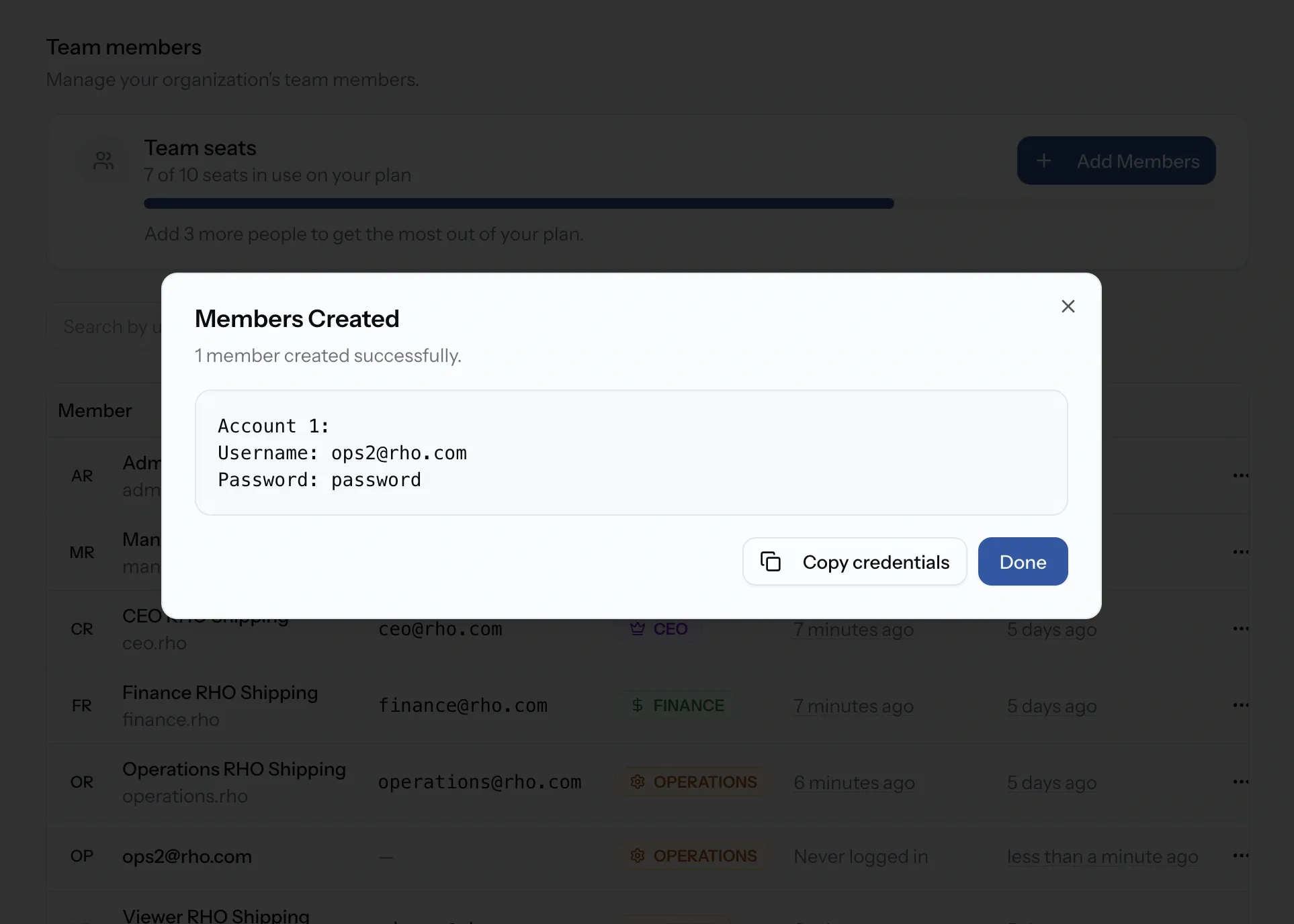
Once created, PortzApp shows every new account with its password, together with a Copy credentials action.
This is the only time those passwords are visible. Copy them before closing, and pass each person their own. Anything missed has to be reset rather than recovered.
Changing a member
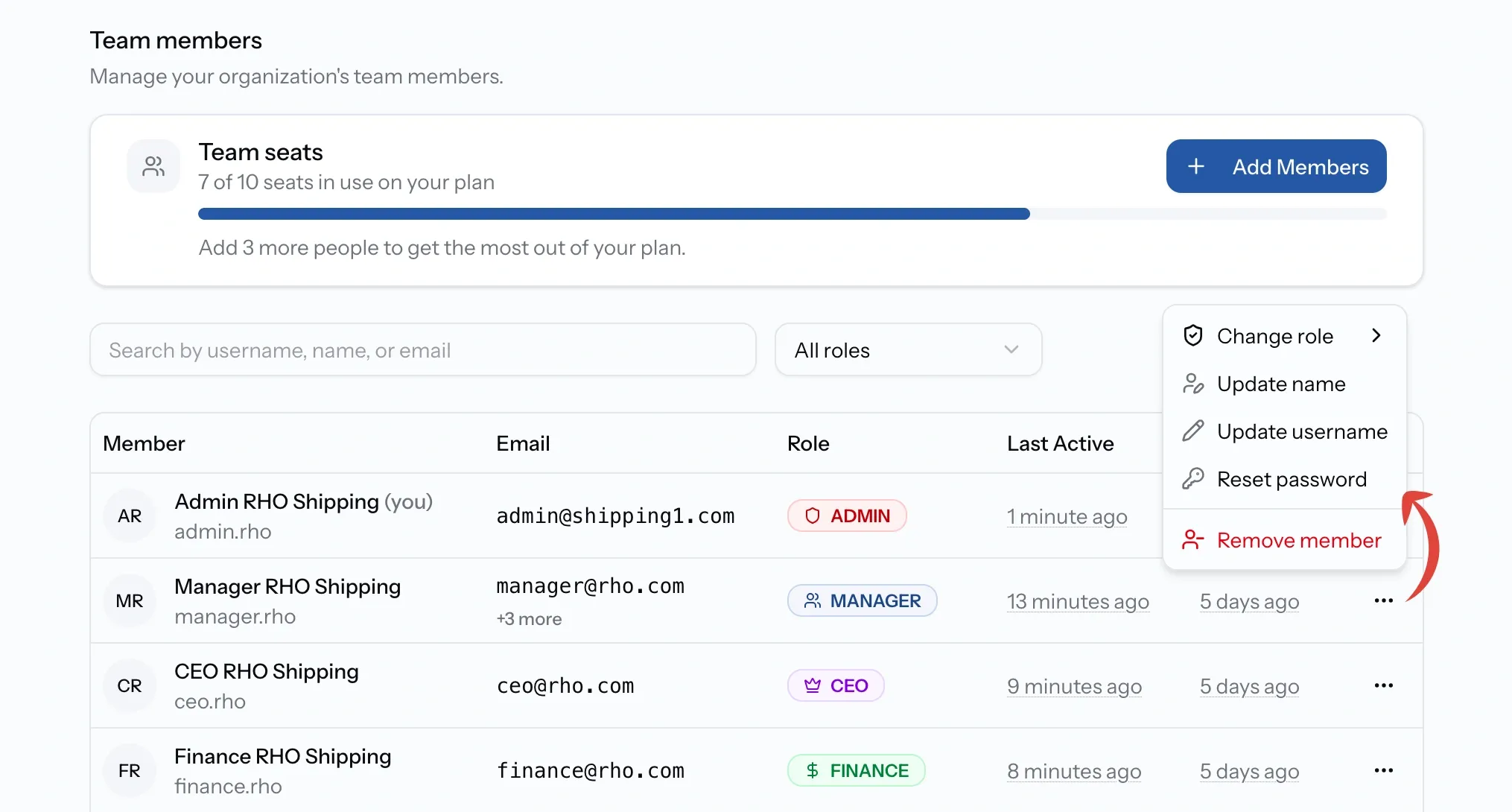
Each member carries a menu of admin actions.
- Update name and Update username correct the details. A changed username changes what that person signs in with.
- Change role moves someone between roles, confirmed by name so the wrong row is not caught by accident.
- Reset password generates a new one, invalidates the old immediately, and shows the replacement once.
Changing your own role is possible but one-way. PortzApp warns before it happens, because an admin who steps down needs another admin to put them back.
Removing someone, and leaving
Removing a member takes them out of the organization and cannot be undone. Their work stays where it is: the jobs they ran, the quotes they sent, and the entries under their name are part of the record.
Leaving is the same action applied to yourself, and carries the same warning in stronger terms. You cannot rejoin unless an admin adds you back, so an organization with one admin should promote a second before that admin leaves.
Common issues
I cannot add members or change roles
Managing the team needs the Admin role. Other roles cannot see it.
A new member is not receiving notifications
Accounts start with no email address. They add one themselves under Settings, Emails.
I cannot create another account
Every seat on your plan is in use. Remove someone, or buy more seats.
I removed the wrong person
Removal cannot be undone, but the account can be created again. Their past work stays on the record either way.