
Services & Port Coverage
Your catalog is what buyers search. Services are switched on from a shared list so they are named the way buyers look for them, and each one is set live only at the ports you cover.
FOR PROVIDERS
A catalog exists only for organizations that offer port services: agents, suppliers, brokers, freight forwarders, and vendors. Find it under Services in the sidebar. Adding services and setting coverage there needs the Admin, Manager, Operations, or Finance role, while the same fields on your company profile are Admin only.
Key takeaways
- Services are switched on from a shared catalog, not written from scratch.
- Your company profile and your Services page write to the same catalog.
- A service switched on from your profile opens at every port you serve.
- Coverage can then be tuned service by service, country by country.
A catalog you switch on
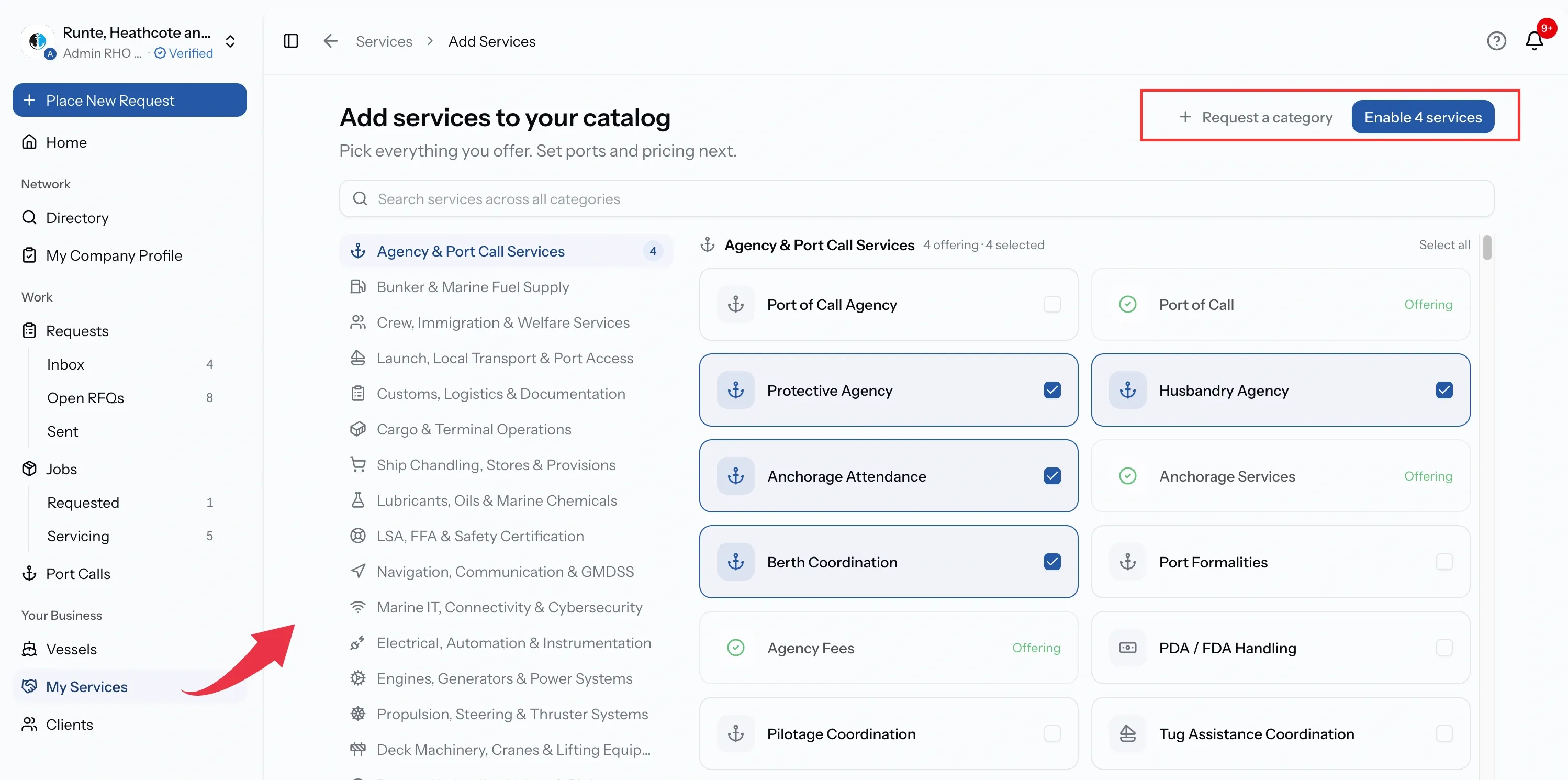
PortzApp keeps one catalog of services, organized into categories and sub-categories, and every provider works from it.
That is what makes the marketplace searchable. When a buyer filters for bunkering at Fujairah, they are matching against the same sub-category you switched on, not against a description you happened to word differently.
Adding services is therefore a matter of ticking what you offer, across as many categories as apply, and confirming the lot in one go. Anything genuinely missing can be raised with Request a category.
Your catalog at a glance
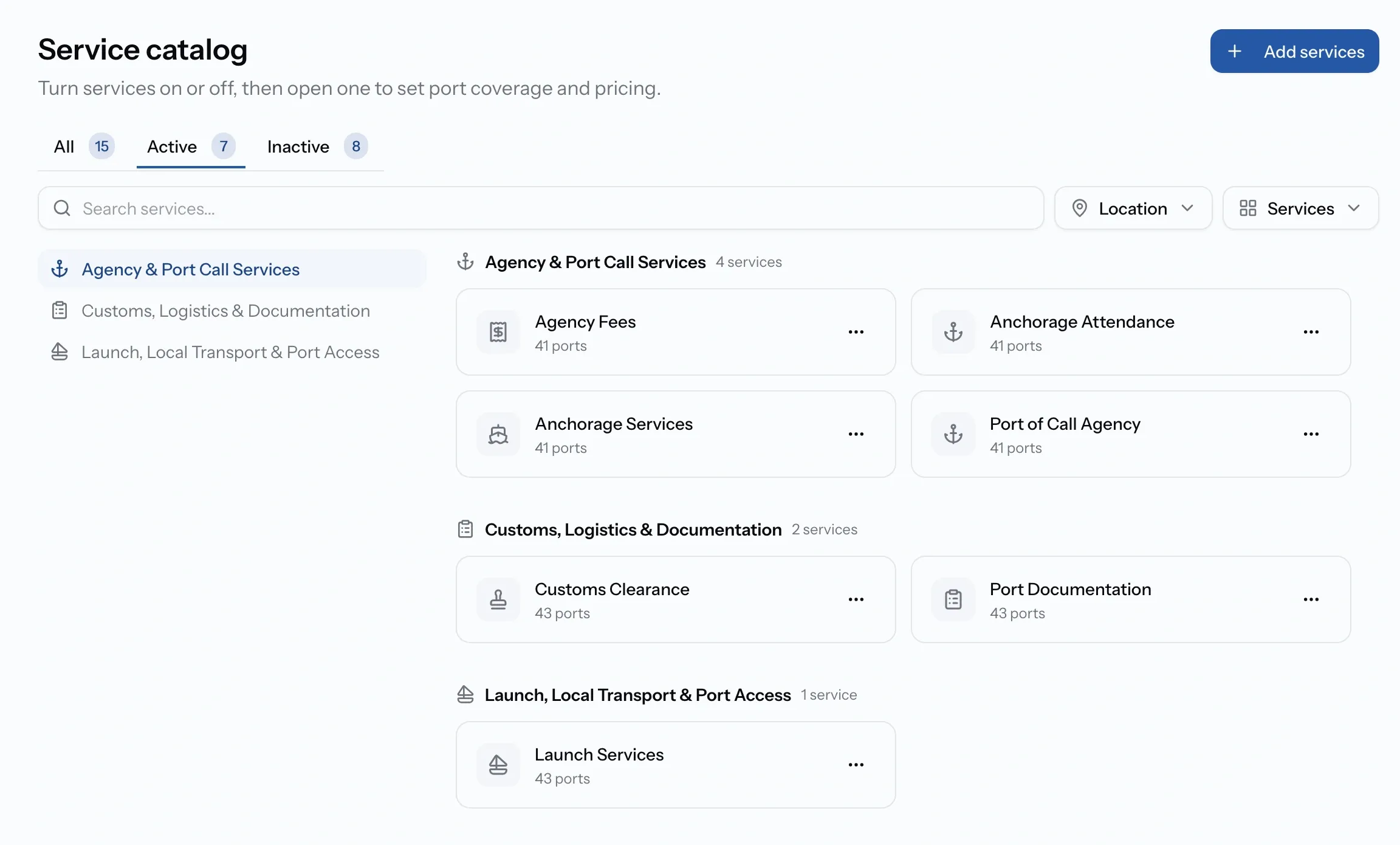
The Services list is grouped by category and opens on Active, with tabs for Inactive and All carrying their own counts.
Alongside search, two filters narrow it: by catalogue, down to a single sub-category, and by location, down to a port or country. Each row shows how many ports the service runs at and whether pricing has been set, so gaps are visible without opening anything.
The same catalog, from your company profile
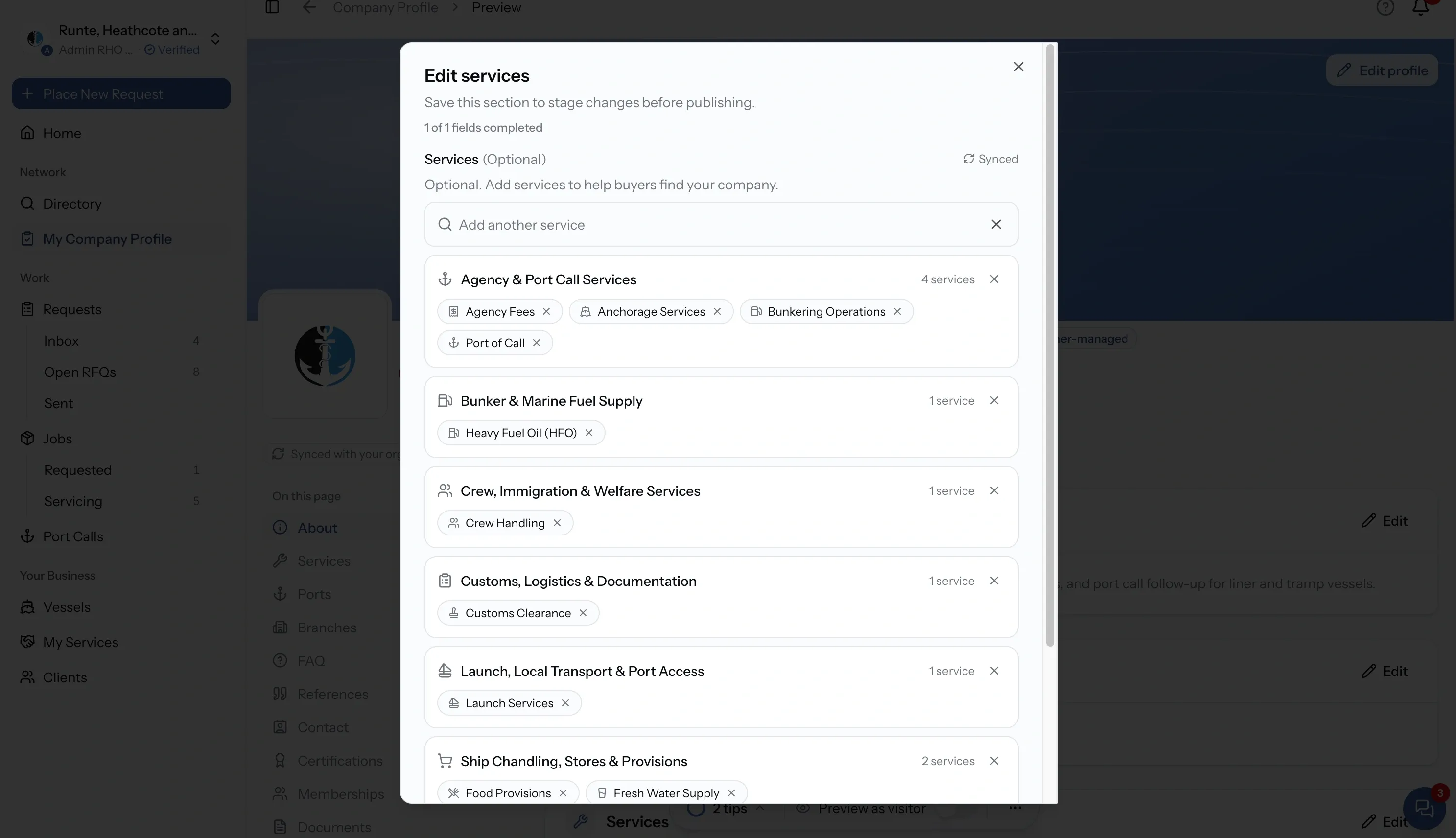
Your public profile carries Services and Ports served, and they are not a separate description of your business. They are the same catalog, shown from the other side.
Both fields are marked Synced, which is the app saying so plainly: editing services on the profile also updates your service listings, and editing ports served also updates the ports on them.
The difference is scope. The profile sets the broad shape of what you offer and where. The Services page is where that gets refined.
Ports served
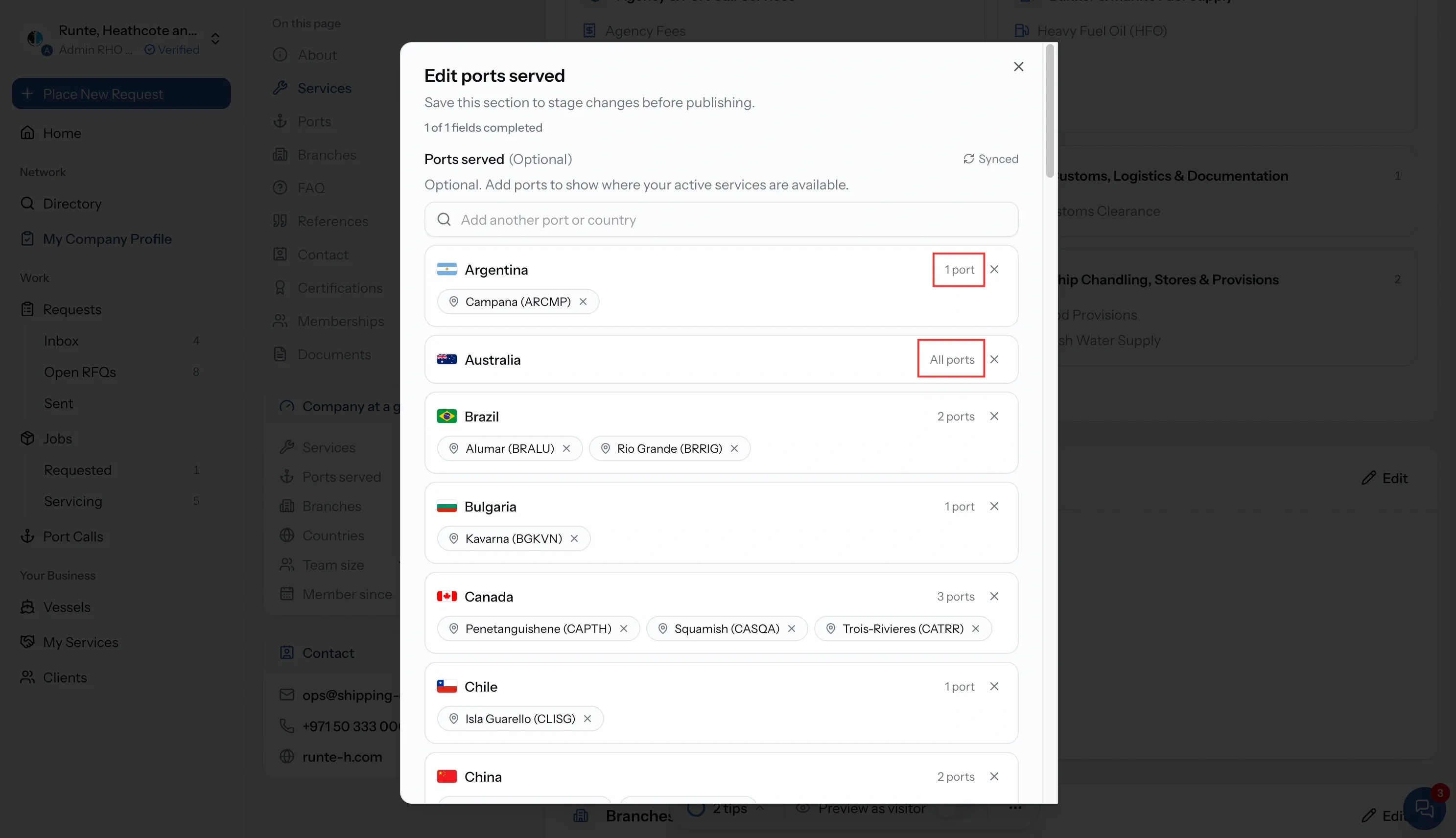
Ports served is where you cover, expressed the way a provider actually thinks about it: whole countries at a time, individual ports where the coverage is narrower, and exclusions for the ones inside a country you do not work.
It is optional, and a profile without it still appears in the directory. What it changes is where your services are offered, which is what puts you in front of a buyer raising a request.
How profile changes reach your catalog
Your company profile controls which services are active in your catalog and the ports where they are available. Changes to Services and Ports Served are reflected in the catalog when you save your profile.
- Selecting a service makes it active in your catalog. Removing it makes it inactive rather than deleting it, so its existing ports and tariff items are kept.
- When you add a new service, it is automatically enabled for all ports you currently serve.
- For services that are already in your catalog, changes to Ports Served update their coverage. Adding a port makes the service available there, while removing a port disables it.
- Ports Served sets the boundary for your service coverage. A service can only be active at ports that are included in your company profile.
This keeps your catalog aligned with your profile: Services define what you offer, and Ports Served defines where you offer it.
Inside a service
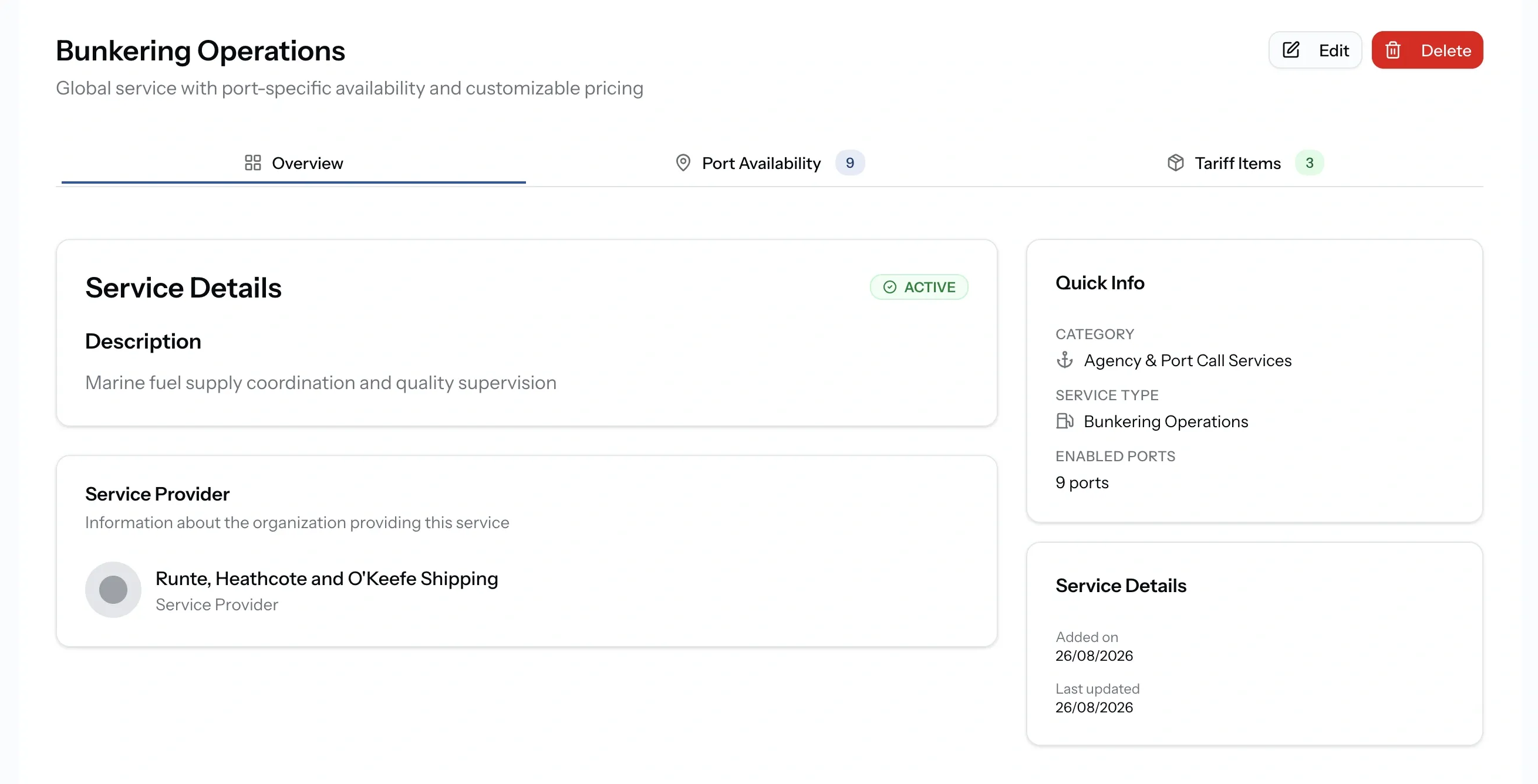
Each service opens on three tabs.
- Overview: what the service is, who provides it, and when it was added.
- Port Availability: where it runs, badged with the number of ports enabled.
- Tariff Items: the pricing behind it, badged with the number of default items. See Tariff Management.
A service is global by design. Switching it on says you offer it, and port availability says where.
Port coverage
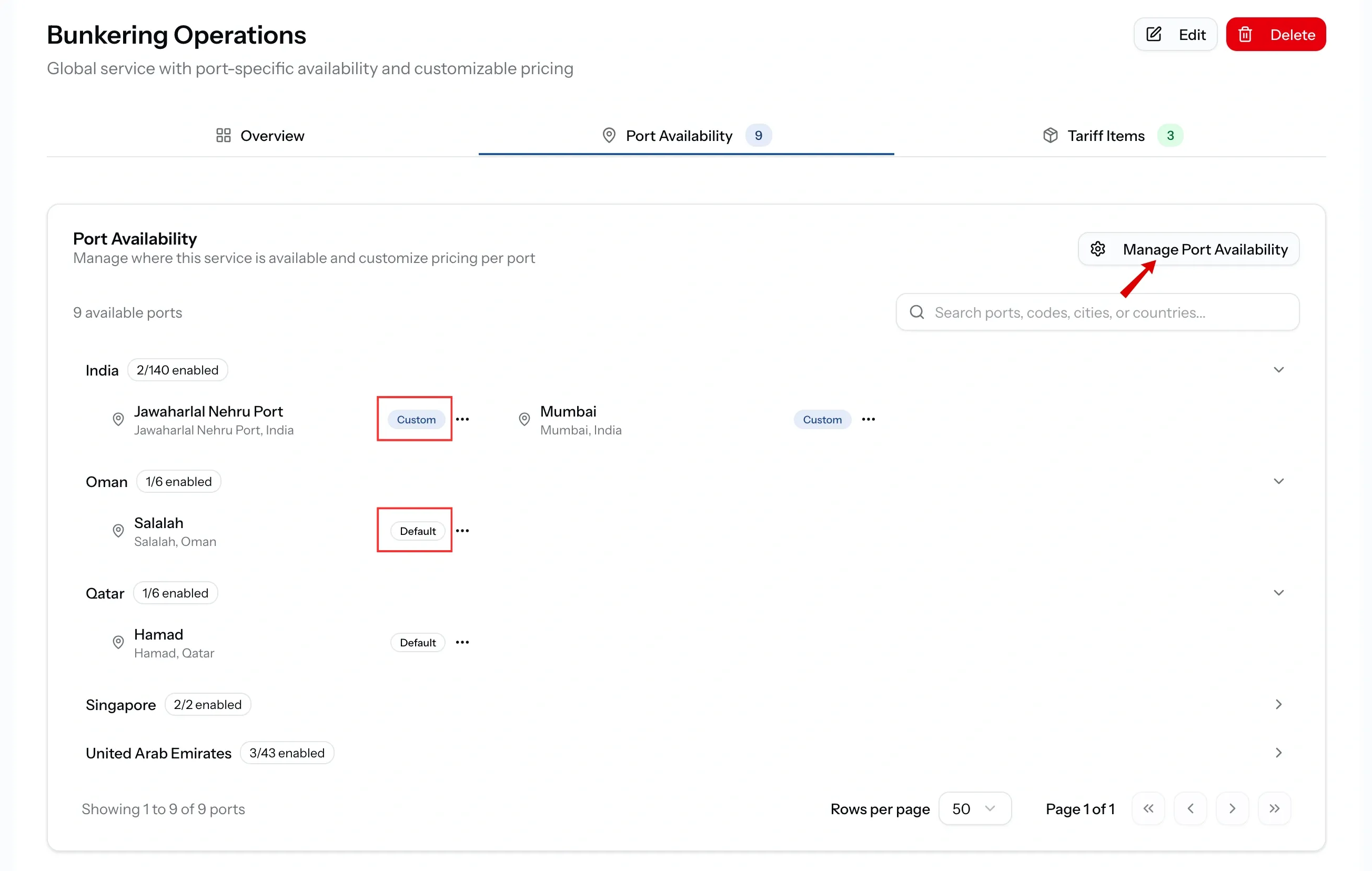
A service with no ports enabled is not offered anywhere. Coverage decides whether a buyer's request at a given port reaches you at all.
The Port Availability tab lists where the service currently runs. Each port carries a badge: Default where it uses your standard pricing, and Custom where you have set rates for that port specifically.
Setting coverage in bulk
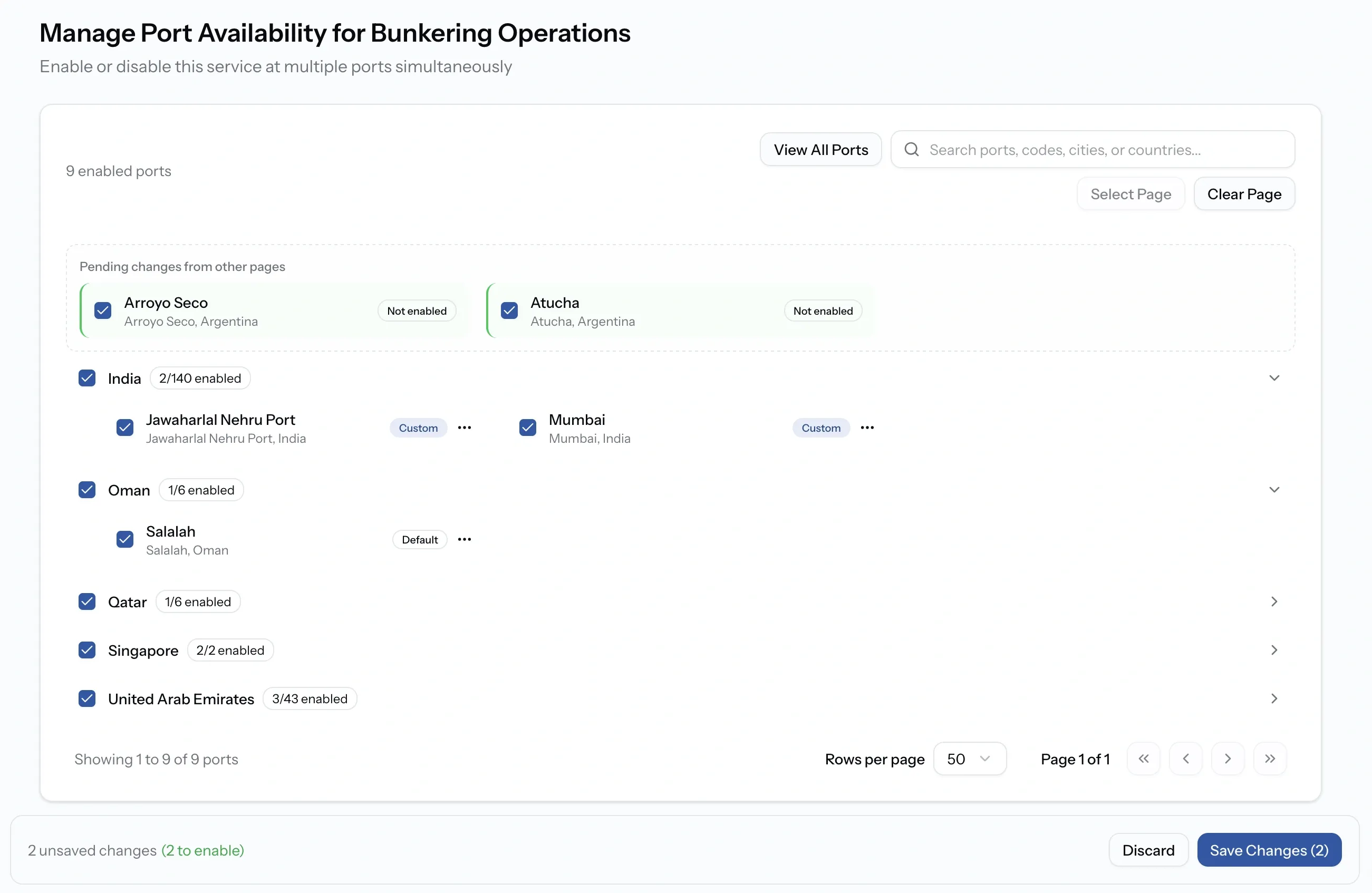
Where the profile paints in broad strokes, Manage Port Availability works one service across the whole world.
Ports are grouped by country, each showing how many are enabled out of the total, and a country can be ticked in a single action. Search reaches ports by name, code, city, or country.
Changes made on one page are held while you move to the next and shown back before saving, so a large redraw of coverage is one deliberate save rather than dozens.
Taking a service off the market
A service you no longer offer can be set Inactive, which removes it from what buyers see while keeping its coverage and pricing intact.
Deleting removes it outright and is limited to Admins and Managers.
Common issues
We are not receiving requests at a port we cover
The service is switched on but the port is not enabled for it. A service with no ports is offered nowhere.
A port I enabled has switched itself off
Ports served on the company profile is the outer boundary. Saving coverage there disables anything outside it, so add the port to the profile as well.
Editing my profile changed my services
That is intended. Services and ports served are marked Synced, and both write into your catalog.
The service we offer is not in the catalog
Use Request a category. The catalog is shared, so additions are reviewed rather than created directly.